
Braze delivery
JustAI journeys can send email, push notifications and in-app messages through your own Braze workspace. JustAI decides who gets which message and when. Braze sends it from your sender and your apps, with your footer and your unsubscribe rules.
This guide is for the person who sets up Braze for your team, such as your marketing operations lead or your Braze admin. Your JustAI onboarding contact works through it with you. JustAI does not send SMS through Braze yet.
This guide covers JustAI journeys. To run copy experiments inside your own Braze campaigns and Canvases, see Braze.
Who owns what
Section titled “Who owns what”JustAI owns:
- The journey: who enters it, which steps they get, and when.
- The content of each message: an email’s subject, preheader, body and plain text; a push’s title, message, link and image; an in-app message’s header, body, image and buttons.
- The choice of which person gets which message.
- Quiet hours, set on each journey. See Quiet hours.
Braze owns:
- The sender: from name, from address and reply-to address.
- The footer and the unsubscribe link.
- Your apps’ push credentials and the devices Braze knows for each person.
- Subscription state. A person who unsubscribed in Braze gets nothing.
- Frequency capping, as your Braze workspace sets it.
- The send itself.
You build one Canvas in Braze for JustAI, once. For each message, JustAI enters one person into that Canvas, and the Canvas sends the message on its channel.
Before you start
Section titled “Before you start”You need the following.
- A Braze workspace on any instance. Know which instance your dashboard uses, such as US-01 or EU-02. It is in your Braze dashboard address.
- A Braze user who can create REST API keys and Canvases in that workspace.
- The same user ID in Braze and in JustAI. Braze finds a person by their
external ID. JustAI asks Braze to send to the user ID it holds for that
person. The two must be the same value. For example, if your app sends
user_id: "<user id>"to JustAI, that person’s external ID in Braze must also be<user id>. If your Braze external IDs differ from the user IDs you send to JustAI, stop and tell your onboarding contact before you go on. - Braze Currents. Currents is a Braze add-on that exports events. JustAI reads them to show what happened to each message. Each Current uses one of your Currents slots. Without Currents, JustAI can show only that Braze accepted a send, and nothing after that.
- For push: push credentials uploaded in Braze for each app platform you send to. iOS needs APNs and Android needs FCM. Web push needs no uploaded credential.
- For in-app messages: your apps run the Braze SDK. JustAI matches Braze’s in-app events to its messages only when the app’s SDK version sends message extras. Ask your onboarding contact which versions those are.
Step 1: Create a REST API key in Braze
Section titled “Step 1: Create a REST API key in Braze”In Braze:
- Open Settings > APIs and Identifiers.
- Select Create API Key.
- Name it
JustAI. - Turn on these four permissions:
canvas.details, so JustAI can check your Canvas.canvas.trigger.send, so JustAI can send through your Canvas.users.export.ids, so JustAI can find a test recipient by email address.users.track, so JustAI can add a teammate to Braze as a test recipient.
- Optionally, also turn on
canvas.data_series. With it, a test that never arrives can show whether anyone entered the Canvas and whether your app showed an in-app message. - Save the key and copy it.
Step 2: Connect Braze in JustAI
Section titled “Step 2: Connect Braze in JustAI”In JustAI:
- Open Settings > Integrations.
- Select Add, then Braze.
- Optional: enter a connection name your team will recognize.
- Choose the Braze instance that matches your Braze dashboard address.
- Paste the REST API key.
- Select Save connection.
JustAI checks the key with Braze before it saves it. The API key section then shows one of these statuses.
| Status | What it means | What to do |
|---|---|---|
| Connected | Braze accepted the key. | Nothing. |
| Connected, with a line about finding people by email | Braze accepted the key, but it lacks users.export.ids. Journeys can send. Tests cannot find their recipient. | Create a key with all four permissions from step 1, and save it. |
| Key or permission problem | Braze refused the key. The key is wrong, belongs to another instance, or lacks a permission. | Check the instance. Create a key with all four permissions from step 1, and save it. |
| Braze unavailable | Braze did not answer in time, or asked JustAI to slow down. | Select Check connection again in a few minutes. |
Select Check connection at any time to check the key again.
Step 3: Send Braze events to JustAI with Currents
Section titled “Step 3: Send Braze events to JustAI with Currents”Your onboarding contact gives you three things: the bucket name, the folder, and the credentials for the bucket.
In Braze:
- Open Partner Integrations > Data Export.
- Create a new Current of the Amazon S3 type. If you already have a Current for JustAI, edit that one instead.
- Enter the bucket name, the folder and the credentials from your onboarding contact. Type the folder exactly as given.
- Select the events for each channel you send:
- Email: Send, Delivery, Bounce, Soft Bounce, Open, Click, Unsubscribe, Mark As Spam and Abort.
- Push: Push Notification Send, Bounce, Abort and Open.
- In-app: In-App Message Impression, Click and Abort.
- Launch the Current.
Braze writes events to JustAI every 5 minutes. A missing event type means JustAI cannot show that outcome. For example, without Delivery, a delivered email still reads Accepted by Braze. Without In-App Message Impression, an in-app message reads Accepted by Braze and then Expired, even if people saw it.
Step 4: Build the delivery Canvas in Braze
Section titled “Step 4: Build the delivery Canvas in Braze”JustAI sends every message through one API-triggered Canvas. Braze has no way for JustAI to create a Canvas, so you build it, once. JustAI shows the same steps, with a copy button for every value, under Settings > Integrations > Braze, in the Delivery Canvas section.
The Canvas starts with a step named Channel. It sends each message down the path for its channel: Email, Push or In-app. Each path leads to one Message step. Build the paths for the channels you send. JustAI checks every path you build.
You can build the Canvas in either of two ways.
With Claude in Chrome
Section titled “With Claude in Chrome”This takes about 20 minutes. Do not use BrazeAI Operator. It cannot create the Channel step’s filters.
- Sign in to Braze in Chrome.
- In Delivery Canvas, select Setup prompt for Claude in Chrome and copy the prompt.
- Paste the prompt into Claude in Chrome. It builds the Canvas, reads every setting back, launches it, and gives you the Canvas URL.
- If it stops, finish the rest with the manual steps below.
Launching the Canvas sends nothing. Braze sends only when JustAI triggers it for a journey or a test.
By hand
Section titled “By hand”This takes up to 30 minutes.
1. Canvas settings. Go to Messaging > Canvas > Create Canvas, and create a Canvas with these settings. Save as you go, and close panels with Done. Escape closes the editor and loses unsaved edits.
| Setting | Value |
|---|---|
| Canvas name | JustAI delivery |
| Entry schedule | API-Triggered |
| Entry audience | The filter External User ID is not blank under Additional Filters, with no segment |
| Re-entry | On Target Audience, under Entry Controls, allow users to re-enter. Choose Specified Window, 0, Seconds. |
| Variants | One variant at 100%, no control group |
| Exit criteria | None |
| Quiet hours | Off, under Send Settings |
Braze will not launch a Canvas with an empty entry audience. The filter lets in everyone JustAI can send to.
Leave Braze quiet hours off. This one Canvas sends for every journey, so its quiet hours would apply to all of them alike. Set quiet hours on each journey in JustAI instead. See Quiet hours.
Re-entry must be 0 seconds. The field’s arrows stop at 1, so click into it, select the number and type 0. The grey “Enter a value more than 0” is placeholder text. Then choose Seconds. With any longer window, including the default 3 Days, Braze quietly drops a message to someone who just got one.
2. Channel step. Add an Audience Paths step named Channel as the
Canvas’s first step. Give it one path per channel, in this order:
| Path name | Filter value |
|---|---|
Email | email |
Push | push |
In-app | in_app |
On each path, add a Context Variable filter:
- In the variable name field, type
channelin lowercase and select Use “channel” below the field. The list is empty until you do. - Change the comparison from more than to the equals under STRING.
- Type the value from the table exactly, in lowercase.
Braze compares names case by case. A filter on Channel sends every message
to Everyone Else, and nothing goes out. On Everyone Else, tick I want
this group to exit the Canvas, or Braze refuses to launch with “Missing
steps”. Leave it with no step after it.
3. Email message. On the Email path, add a Message step named Email
with one email message. Add no step after it. People leave the Canvas once the
email sends.
- Choose the from name, the from address and the reply-to address. Your workspace’s default sender works.
- In Sending Info, set One-click list-unsubscribe setting to Unsubscribe globally from all emails. This adds the header that lets mail apps show their own unsubscribe button.
- Set the subject line and the preheader to the JustAI values below, with nothing before or after them.
- Open the HTML editor, not the drag-and-drop editor. Paste the JustAI body
block at the very top of the email body. Paste each value whole: Braze
adds closing braces as you type
{{, which breaks the Liquid. - Below the body block, add your footer. It must contain an unsubscribe link that uses Braze’s unsubscribe link tag, shown below.
- Open the email editor’s Plaintext tab. Paste the JustAI plain text, then a plain-text footer with the unsubscribe link.
Braze may warn that the body has no unsubscribe link even when the footer has one. You can ignore that warning.
4. Push message. On the Push path, add a Message step named Push
with one push message per platform. Web push needs no uploaded credential.
Add iOS or Android only if its push credentials are uploaded in Braze, under
Settings > App Settings. Add no step after it.
On every platform’s message:
- Set the title and the message to the JustAI values below, with nothing before or after them.
- Paste the JustAI link as the on-click link. On iOS and Android, choose Open a deep link. Web push has no deep link option, so choose Open web URL.
- Set the image to the JustAI image. On Web push, use Web notification image and leave the 1:1 push icon empty.
- On iOS, also choose the image’s file type. Braze will not launch the Canvas without it.
5. In-app message. On the In-app path, add a Message step named
In-app with one in-app message. Add no step after it.
The trigger and message type must match how your app already shows in-app messages. Otherwise Braze holds the message and your app never displays it. Copy both from an in-app message that works in your app today, and choose them under How your app shows in-app messages in JustAI. The setup steps in JustAI then show the values to use:
- When a session starts is Braze’s default. Use it when your app shows in-app messages as soon as it opens.
- When the app logs an event is for apps that show in-app messages only on
certain screens. Enter the custom event, and optionally a property and the
values it must equal, such as
screen_nameequalshomeorpresent. In Braze, add one trigger action for each value. - Modal uses Braze’s built-in layout with the fields below.
- Custom HTML is for apps that show only Custom Code in-app messages. Set the message type to Custom Code, then HTML, and paste the page from the JustAI setup steps. You can change its styles. Keep the line that holds the body as it is.
With the default choice, set these:
| Setting | Value |
|---|---|
| Send to | Both Mobile Apps & Web Browsers |
| Message type | Modal, not Custom Code |
| Layout | Text (with Optional Image) |
| Trigger | Under Message Controls on the Messaging channels tab: Start Session, in any app |
| Header | The JustAI header below |
| Body | The JustAI body below, with nothing before or after it |
| Image | The JustAI image below |
| Button 1 | The JustAI button text below. On click, Open web URL with the JustAI link below. |
| Button 2 | The JustAI second button text below. On click, close the message. |
| Expiration | Under Message Controls: A duration after the step is available, 1 day |
6. Launch the Canvas. On Summary, select Launch Canvas. Launching sends nothing. Braze sends only when JustAI triggers it for a journey or a test. If you edit the Canvas after launch, select Update Canvas, or Braze keeps the old version. Then go to step 5.
Text to paste
Section titled “Text to paste”Paste each block exactly as shown. Do not put any of them inside a Liquid
if block or loop.
Subject line:
{{context.${justai}.${subject}}}Preheader:
{{context.${justai}.${preheader}}}Body block, at the top of the email body:
{% capture justai_mid %}{{context.${justai}.${message_id}}}{% endcapture %}{% message_extras :key justai_message_id :value {{justai_mid}} %}{% connected_content {{context.${justai}.${content_url}}} :headers {"Authorization": "Bearer {{context.${justai}.${content_token}}}"} :save justai_content %}{% if justai_content.html == blank %}{% abort_message('JustAI content unavailable') %}{% endif %}{{justai_content.html}}Unsubscribe link, in the footer:
{{${set_user_to_unsubscribed_url}}}Custom plain text, before the plain-text footer:
{{context.${justai}.${text}}}The body block does four things:
- It tags each send with JustAI’s message ID, so Braze’s events can be matched to the right JustAI email.
- It fetches that person’s email from JustAI. The fetch carries a one-time token, so the Canvas holds no password.
- It stops the send if the fetch returns nothing. Without this line, a slow fetch makes Braze send an email with an empty body.
- It prints the email.
Title:
{{context.${justai}.${title}}}Message:
{% capture justai_mid %}{{context.${justai}.${message_id}}}{% endcapture %}{% message_extras :key justai_message_id :value {{justai_mid}} %}{{context.${justai}.${body}}}Link:
{{context.${justai}.${link}}}Image:
{{context.${justai}.${image}}}A push carries its whole content in the message, so it fetches nothing. An empty link opens the app, and an empty image shows none.
In-app
Section titled “In-app”Header:
{{context.${justai}.${title}}}Body:
{% capture justai_mid %}{{context.${justai}.${message_id}}}{% endcapture %}{% message_extras :key justai_message_id :value {{justai_mid}} %}{{context.${justai}.${body}}}Image:
{{context.${justai}.${image}}}First button text, first button link, and second button text:
{{context.${justai}.${primary_label}}}{{context.${justai}.${primary_link}}}{{context.${justai}.${secondary_label}}}A field JustAI leaves empty shows nothing in its slot.
What JustAI can check, and what it cannot
Section titled “What JustAI can check, and what it cannot”JustAI reads the Canvas from Braze and checks most of these steps for you. It checks API-triggered entry, that the Canvas is launched, the single variant, the Channel step, and each channel’s Message step: its channels, that no step follows it, its number of messages, and every JustAI value Braze reports.
Braze does not show some settings to JustAI, so JustAI cannot check them:
- The entry audience.
- Re-entry after 0 seconds.
- The filters on the Channel step’s paths.
- The email’s one-click unsubscribe option.
- The iOS push image’s file type. Braze refuses to launch the Canvas without it.
- The in-app message’s type, header, image, buttons, trigger and expiration. Braze reports only its body.
Check these by hand. Each channel’s test in step 6 proves the ones that matter for that channel: a test sends two entries to the tester, so it does not arrive if re-entry is above 0 seconds or the path’s filter is wrong, and the in-app test shows its code in the header.
Step 5: Paste the Canvas URL in JustAI
Section titled “Step 5: Paste the Canvas URL in JustAI”In Braze, open the launched Canvas and copy the address from your browser. It
looks like https://dashboard-<number>.braze.com/engagement/canvas/<canvas id>/<workspace id>.
In JustAI:
- Open Settings > Integrations and select your Braze connection.
- In Delivery Canvas, paste the address into Canvas URL.
- Select Save and check Canvas.
JustAI refuses an address that is not a Braze dashboard address, one that does not open a Canvas, and one from another Braze instance than your API key’s.
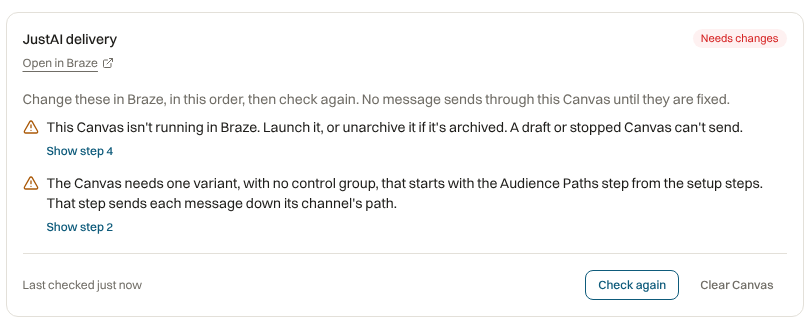
JustAI saves the Canvas and checks it. The Canvas then shows Checked, or Needs changes with each problem to fix in Braze, in the order to fix them. Each problem links to the setup step that fixes it. After you change the Canvas in Braze, select Check again.
Problems JustAI can report
Section titled “Problems JustAI can report”Each problem comes with the fix, in the words JustAI shows.
Problems with the Canvas as a whole. While the Canvas has any of these, JustAI checks no Message step and no channel can send.
| Problem | Fix |
|---|---|
| No Canvas at this URL | Braze has no Canvas at this URL in the workspace this connection’s API key belongs to. Open the Canvas in Braze and copy the URL from your browser. |
| Not API-triggered | This Canvas doesn’t use API-triggered entry. In Braze, set its Entry Schedule to API-Triggered and launch it again. |
| Not running | This Canvas isn’t running in Braze. Launch it, or unarchive it if it’s archived. A draft or stopped Canvas can’t send. |
| No Channel step | The Canvas needs one variant, with no control group, that starts with the Audience Paths step from the setup steps. That step sends each message down its channel’s path. |
| No Message step | None of the Canvas’s paths leads to a Message step JustAI can send through. Add the Email or Push path’s Message step from the setup steps. |
Problems with the Email step:
| Problem | Fix |
|---|---|
| Other channels | The Email path’s Message step sends on channels other than email. Make email its only channel. |
| Steps after the email | Remove the steps after the Email path’s Message step. People must leave the Canvas once the email sends, or each journey send would also send what follows. |
| Messages | The Email path’s Message step needs exactly one email message. Remove the extra messages in Braze. |
| Subject | Set the subject line to the JustAI subject from the setup steps, with nothing before or after it. |
| Preheader | Set the preheader to the JustAI preheader from the setup steps, with nothing before or after it. |
| Tracking line | Add the JustAI tracking line from the setup steps to the email body, outside any conditions. Without it, JustAI can’t match Braze’s reports to its messages. |
| Content fetch | Add the JustAI content fetch from the setup steps to the email body, outside any conditions. |
| Empty-content check | Add the empty-content check from the setup steps right after the content fetch. Without it, Braze sends a blank email when JustAI content is slow to arrive. |
| Content | Place the JustAI content from the setup steps in the email body exactly once, after the content fetch and outside any conditions. |
| Unsubscribe link | Add an unsubscribe link to the email footer, outside any conditions, using Braze’s unsubscribe link tag. |
| Plain text | Paste the JustAI plain text from the setup steps into the email’s Plaintext tab. Braze’s automatic plain text keeps raw HTML tags. |
Problems with the Push step:
| Problem | Fix |
|---|---|
| Other channels | The Push path’s Message step sends on channels other than push. Make iOS, Android or web push its only channels. |
| Steps after the push | Remove the steps after the Push path’s Message step. People must leave the Canvas once the push sends, or each journey push would also send what follows. |
| Messages | The Push path’s Message step needs exactly one message for each push platform. Remove the extra messages in Braze. |
| Tracking line | On every platform, start the push message with the JustAI tracking line from the setup steps, outside any conditions. Without it, JustAI can’t match Braze’s reports to its messages. |
| Title | On every platform, set the push title to the JustAI title from the setup steps, with nothing before or after it. |
| Message | On every platform, set the push message to the JustAI tracking line followed by the JustAI message from the setup steps, with nothing else around them. |
| Link | On every platform, set the on-click link to the JustAI link from the setup steps, with nothing before or after it. iOS and Android open it as a deep link; web push opens it as a web URL. |
| Image | On every platform, set the image to the JustAI image from the setup steps, with nothing before or after it. |
Problems with the In-app step:
| Problem | Fix |
|---|---|
| Steps after the message | Remove the steps after the In-app path’s Message step. People must leave the Canvas once the in-app message sends, or each journey in-app message would also send what follows. |
| Messages | The In-app path’s Message step needs exactly one in-app message. Remove the extra messages in Braze. |
| Tracking line | Add the JustAI tracking line from the setup steps at the start of the in-app message body. Without it, JustAI can’t match Braze’s reports to its messages. |
| Body | Set the in-app message body to the JustAI tracking line and the JustAI body from the setup steps, with nothing else. |
Sending profiles
Section titled “Sending profiles”The check lists each Message step it finds under Sending profiles, one per channel, named after the step. You do not add or edit a sending profile. JustAI keeps them in step with the Canvas.
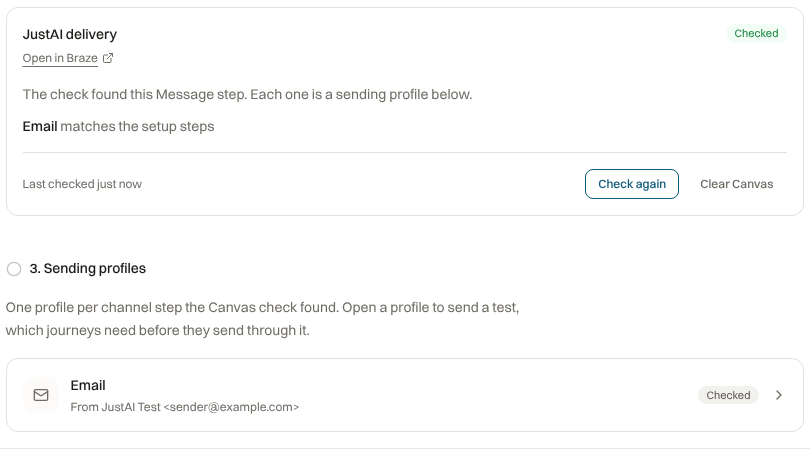
Each sending profile shows one of these statuses.
| Status | What it means |
|---|---|
| Not checked | JustAI found the step but could not finish checking it yet. Select Check again later. |
| Needs attention | The step, or the Canvas, does not match the setup steps. JustAI lists each problem. |
| Checked | The step matches. You can send tests through it. |
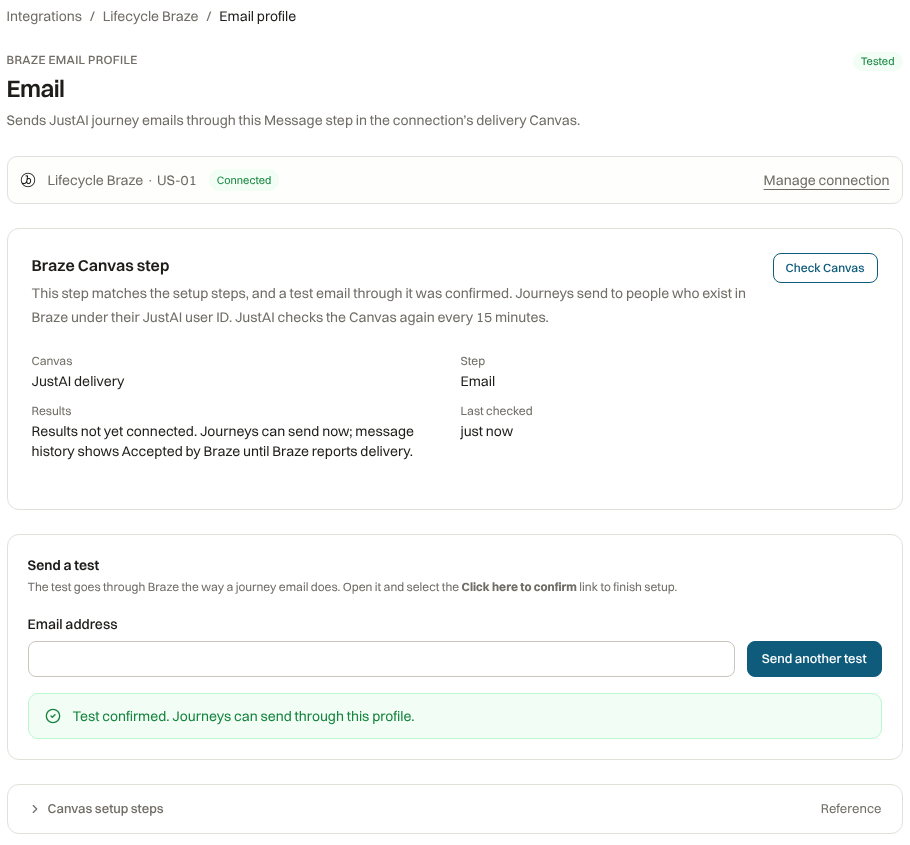
| Tested | Someone confirmed a test from this profile. Journeys can send through it. |
JustAI checks the Canvas again every 15 minutes. If someone edits it in Braze and breaks a step, that step’s profile moves to Needs attention. If someone changes a step’s content after a test, its profile moves back to Checked until a new test is confirmed.
Step 6: Test each sending profile
Section titled “Step 6: Test each sending profile”A journey can send on a channel only through a Tested profile. A test proves that Braze sends JustAI’s content on that channel end to end.
Every test finds its recipient by email address. The address must belong to exactly one user in your Braze workspace with an external ID. If Braze has no user with the address, the email test offers Add, followed by the address and to Braze. You can add only your own address or a teammate’s in your JustAI organization. JustAI then sends the test by itself.
A profile can send one test a minute and ten an hour.
Test the Email profile
Section titled “Test the Email profile”Pick a tester whose inbox you can open.
- Under Sending profiles, open the Email profile.
- In Send a test, enter the tester’s email address.
- Select Send test.
In the tester’s inbox:
- Open the test email.
- Check that the body has real content and is not blank.
- Check that the footer has your unsubscribe link.
- Check that the mail app offers its own unsubscribe button near the sender name. Gmail and Apple Mail show one. This proves the one-click unsubscribe option in the email’s Sending Info.
- Select Click here to confirm in the email. The link opens JustAI.
- Sign in to JustAI if asked. The profile moves to Tested.
The link works for 48 hours.
Test the Push profile
Section titled “Test the Push profile”Use your own email address. Braze sends the test push to the devices it has for that person, so have the app installed, or the site open, with notifications allowed.
- Open the Push profile.
- Enter your email address and select Send test.
- When Braze accepts the test, enter the six-digit code the push shows and select Confirm push test.
The code works for one hour, and only the latest test push can confirm the profile.
Test the In-app profile
Section titled “Test the In-app profile”Use your own email address, and sign in to your app as that person.
- Open the In-app profile.
- Enter your email address and select Send test.
- When Braze accepts the test, do what the In-app step’s trigger expects. With the default trigger, close the app and open it again: the message shows at the next session, not in the one already open. With an event trigger, go to the screen where your app logs that event.
- Enter the six-digit code from the message’s header and select Confirm in-app test.
The code works for one hour, and only the latest test in-app message can confirm the profile.
If a test never arrives
Section titled “If a test never arrives”Each test sends two entries to the tester, one right after the other. With a re-entry window above 0 seconds, Braze drops the second one, which is the test. Check, in Braze:
- The Canvas lets people re-enter after 0 seconds.
- The path’s filter is
channelequals the path’s value. - For email: the address is subscribed to email. Check the spam folder too.
- For push: Braze lists a device for the person, and the platform’s push credentials are uploaded.
- For in-app: you are signed in to the app as the person Braze has with that address, and you did what the In-app step’s trigger expects after the test.
A minute after Braze accepts a test, the test card also reports what Braze has recorded so far:
- Braze hasn’t recorded this test yet. Braze has no record of the test. This does not mean anything is wrong. Braze can take several minutes to update its records.
- Braze recorded no one entering the Canvas since this test. Check the
entry audience and re-entry settings. This shows only when the key has the
canvas.data_seriespermission. - This person entered the Canvas but no Message step reached them. Check the path’s filter and re-entry.
- This person entered the Canvas, but the app hasn’t shown the message.
Check that the In-app step’s trigger and message type match an in-app
message that works in your app. This shows only when the key has the
canvas.data_seriespermission.
If a tester does not exist in JustAI yet, JustAI creates a test person with their Braze external ID as the user ID. That test person keeps the user ID from then on.
Results connected
Section titled “Results connected”A tested profile also shows one of two lines:
- Results connected means Braze Currents reports this channel’s sends to JustAI. Message history shows outcomes.
- Results not yet connected means JustAI has not seen a Braze event for this channel yet. Journeys can still send. Message history shows Accepted by Braze until Braze reports more.
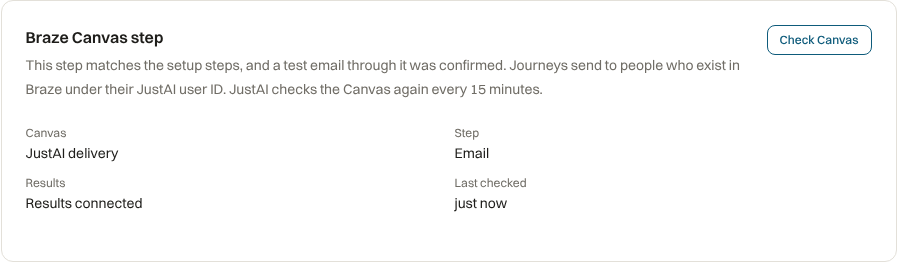
Braze writes events every 5 minutes, so the line can take up to 10 minutes to change after a test. An in-app test connects results only on an app SDK version that sends message extras. If the line never changes, see Sends stay at Accepted by Braze.
Step 7: Use the profiles in a journey
Section titled “Step 7: Use the profiles in a journey”In JustAI:
- Open the journey.
- Open Journey Settings and go to Delivery.
- In the first list, choose your Braze connection.
- For each channel the journey sends, choose that channel’s sending profile.
- Publish the journey.
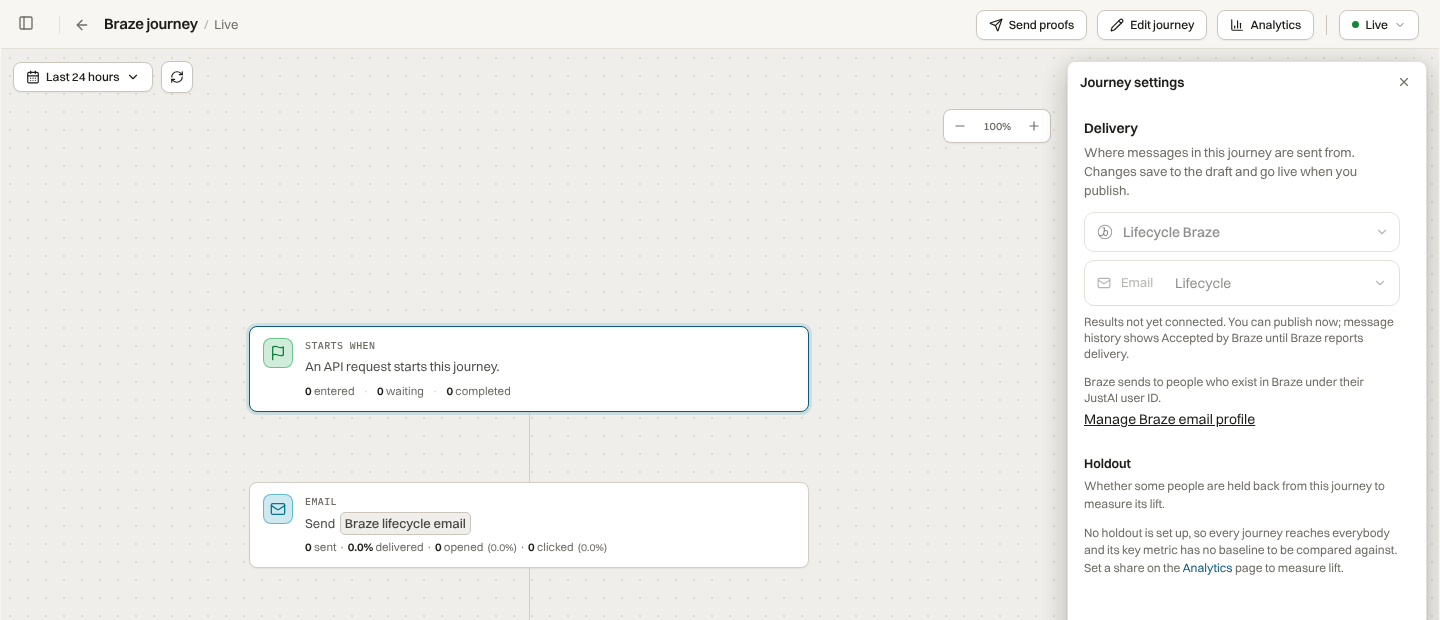
Journey Settings shows whether each profile is ready:
- You can pick a profile that is not yet Tested while you draft and test content. JustAI will not publish the journey until the profile is Tested.
- A journey that sends through Braze can send email, push and in-app messages. JustAI will not publish it with SMS steps, a step whose channel has no Braze profile, or an in-app message built from a Customer.io design.
Every person the journey sends to must exist in Braze, with an external ID equal to their JustAI user ID. JustAI does not send to a person who has no user ID. Nothing is queued for them, so their message history shows nothing. Instead, the journey’s run for that person shows the step failed, with the reason.
A person has at most one JustAI in-app message waiting in Braze at a time, because Braze shows every waiting message, one per app session. While one waits, JustAI refuses a later in-app message to the same person. Nothing is queued, and the journey’s run for that person shows the step failed with “This person already has an in-app message from this connection waiting to be shown. It can send once that message is shown or expires.” JustAI does not send it later by itself. Run the journey for that person again once the earlier message is shown or expires. Emails and pushes to that person still send.
Quiet hours
Section titled “Quiet hours”A journey can have quiet hours: a daily window, such as 21:00 to 08:00, in which its email, SMS and push messages wait. A message that comes due inside the window is sent when the window ends. This matches Braze’s “send at the next available time”.
- The window is read in each person’s own time zone, from their
timezoneprofile attribute, ortime_zonewhen that is missing. A person with neither, or with a value that is not a time zone, uses the time zone set on the journey. - In-app messages are not held. They show the next time your app does what the In-app step’s trigger expects.
- A message sent as a test is not held.
- Quiet hours apply to every journey that sends through JustAI, whichever provider sends its messages.
Set quiet hours with the JustAI MCP tools, create_journey or
update_journey. Publish the journey for the change to reach people.
What you see after a send
Section titled “What you see after a send”Open Users, open a person, and select the Messages tab. Filter by channel to see email, push or in-app messages.

Every Braze message starts the same way:
| Status | What it means |
|---|---|
| Queued | JustAI is about to ask Braze to send. |
| Accepted by Braze | Braze accepted the send. Braze’s dispatch ID appears once Braze reports the send. |
| Outcome unknown | JustAI asked Braze to send, but Braze’s answer was lost. Braze’s events settle it. |
| Failed | Braze did not send the message. |
Then, by channel:
| Channel | Statuses after Accepted by Braze |
|---|---|
| Delivered when the receiving mail server accepted it. Bounced when it refused it. | |
| Push | Bounced when Braze reports a push bounce. Braze reports no push delivery to JustAI, so a delivered push stays Accepted by Braze. |
| In-app | Shown when the person saw it. Clicked when they selected it. Expired when nobody saw it within 24 hours and 10 minutes. |

These outcomes come from Braze Currents. Braze writes events every 5 minutes, so expect an outcome within 10 minutes of the event. An in-app message can show hours later, at the person’s next app session.
Journey analytics count Braze sends from the same events.
Troubleshooting
Section titled “Troubleshooting”The connection shows Key or permission problem
Section titled “The connection shows Key or permission problem”Check that the instance in JustAI matches your Braze dashboard address. Check that the key has all four permissions from step 1. Braze cannot add a permission to a key, so create a new key if one is missing, and save it in JustAI.
The Canvas shows Needs changes
Section titled “The Canvas shows Needs changes”Read the problems JustAI lists under Delivery Canvas. Each one says what to change in Braze and links to the setup step that fixes it. See Problems JustAI can report. After you change the Canvas in Braze, select Check again.
Braze accepted a test, but it never arrived
Section titled “Braze accepted a test, but it never arrived”See If a test never arrives. JustAI cannot read the re-entry window or the path filters, so a Canvas can pass its check with one of them wrong.
A person was not sent a message because they have no user ID
Section titled “A person was not sent a message because they have no user ID”The journey’s run for that person shows the failed step and this reason. JustAI reaches people in Braze by their user ID. Send the person’s user ID to JustAI, the same way you send it for everyone else. Then run the journey for them again.
An in-app message was refused
Section titled “An in-app message was refused”The journey’s run for that person shows the step failed because they already have a JustAI in-app message waiting in Braze. JustAI did not queue the new message and will not send it later by itself. Once the earlier message is shown or expires, 24 hours and 10 minutes after Braze accepted it, run the journey for that person again.
A test email or a journey email arrived blank
Section titled “A test email or a journey email arrived blank”This should not happen. The body block’s empty-content check stops the send when JustAI’s content does not arrive in time. First check that the body block in your Canvas’s email matches Text to paste exactly, and select Check again. If it does, contact JustAI support with the time of the send and the recipient’s user ID.
Sends stay at Accepted by Braze
Section titled “Sends stay at Accepted by Braze”JustAI is not receiving Braze’s events. Check your Current in Braze:
- It is launched.
- It writes to the bucket and folder your onboarding contact gave you.
- It includes every event from step 3 for the channel you send.
Wait 10 minutes after a change, then send a test. A push stays at Accepted by Braze even when it was delivered, because Braze reports no push delivery.
Replace the API key
Section titled “Replace the API key”Create a new key in Braze with all four permissions. In JustAI, open the Braze connection, paste the new key and save it. JustAI checks the new key before it replaces the old one. The Canvas and its sending profiles do not change. Then delete the old key in Braze.
Use a different Canvas
Section titled “Use a different Canvas”Paste the new Canvas’s address into Use a different Canvas and select Save and check Canvas. JustAI checks the new Canvas and finds its steps again.
Disconnect Braze
Section titled “Disconnect Braze”- In Delivery Canvas, select Clear Canvas. JustAI stops sending through the Canvas and removes its sending profiles. The Canvas stays in Braze. JustAI will not clear a Canvas while a journey uses one of its sending profiles. Remove the profile from those journeys and publish them again first.
- Delete the connection from its menu under Settings > Integrations
Braze. JustAI deletes the stored key.
- Delete the key in Braze as well.
Limits
Section titled “Limits”- No SMS through Braze yet.
- One delivery Canvas per Braze connection.
- At most one JustAI in-app message waiting per person.
- Braze reports no push delivery to JustAI.
- JustAI starts each Braze workspace at about 10 sends a second. Those requests count toward the same Braze API limits as your other tools that use the Braze API.