
Resources
Resources allows you to upload structured data (via CSV) into the platform and reuse it when generating email variants.
Instead of manually writing context into every test, you can:
- Upload your full dataset (e.g., trainings, products, events, inventory)
- Create filtered “cuts” of that data (called Views)
- Use those views to power AI-generated email variants with relevant, structured context
Think of Resources as a reusable data layer that makes your email testing smarter and more data-informed.
Example use case
Section titled “Example use case”Let’s say you upload a catalog of trainings with detailed information about each session, such as:
- Training name
- Instructor name
- Instructor score (average rating)
- Number of participants enrolled
- Duration
- Skill level (Beginner, Intermediate, Advanced)
- Topic category (Leadership, Technical, Compliance, etc.)
- Upcoming session dates
- Location (Virtual or In-person)
- Certification included (Yes/No)
Instead of manually referencing this information in every campaign, you can use Resources to organize and activate it.
For example, you could:
- Create a view for Beginner-level trainings
- Create a view for Trainings with instructor score above 4.5
- Create a view for Leadership trainings happening this month
Once these views are created, you can use them directly inside your email tests.
How to start using it
Section titled “How to start using it”Step 1: Create a new Resource
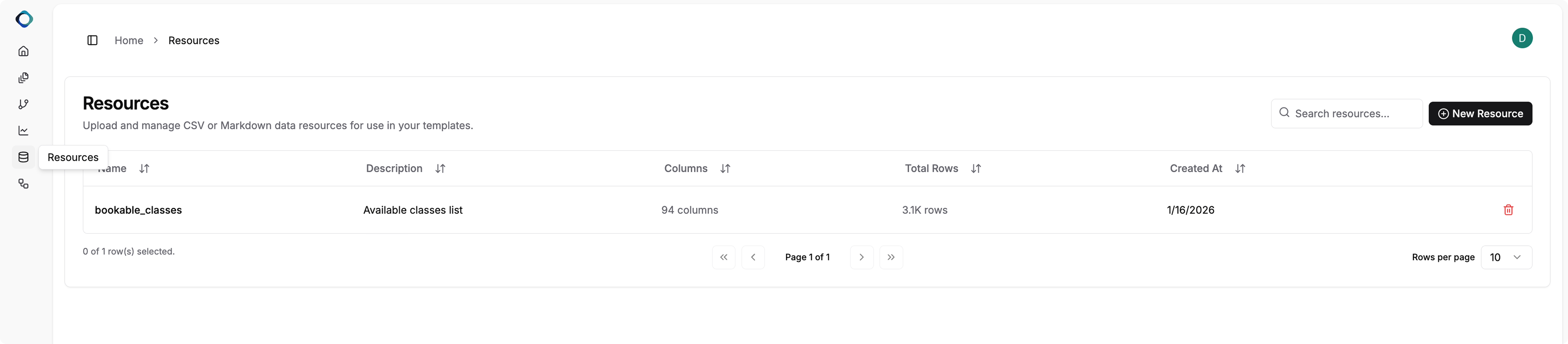
Section titled “Step 1: Create a new Resource”- Go to the Resources tab in your menu.
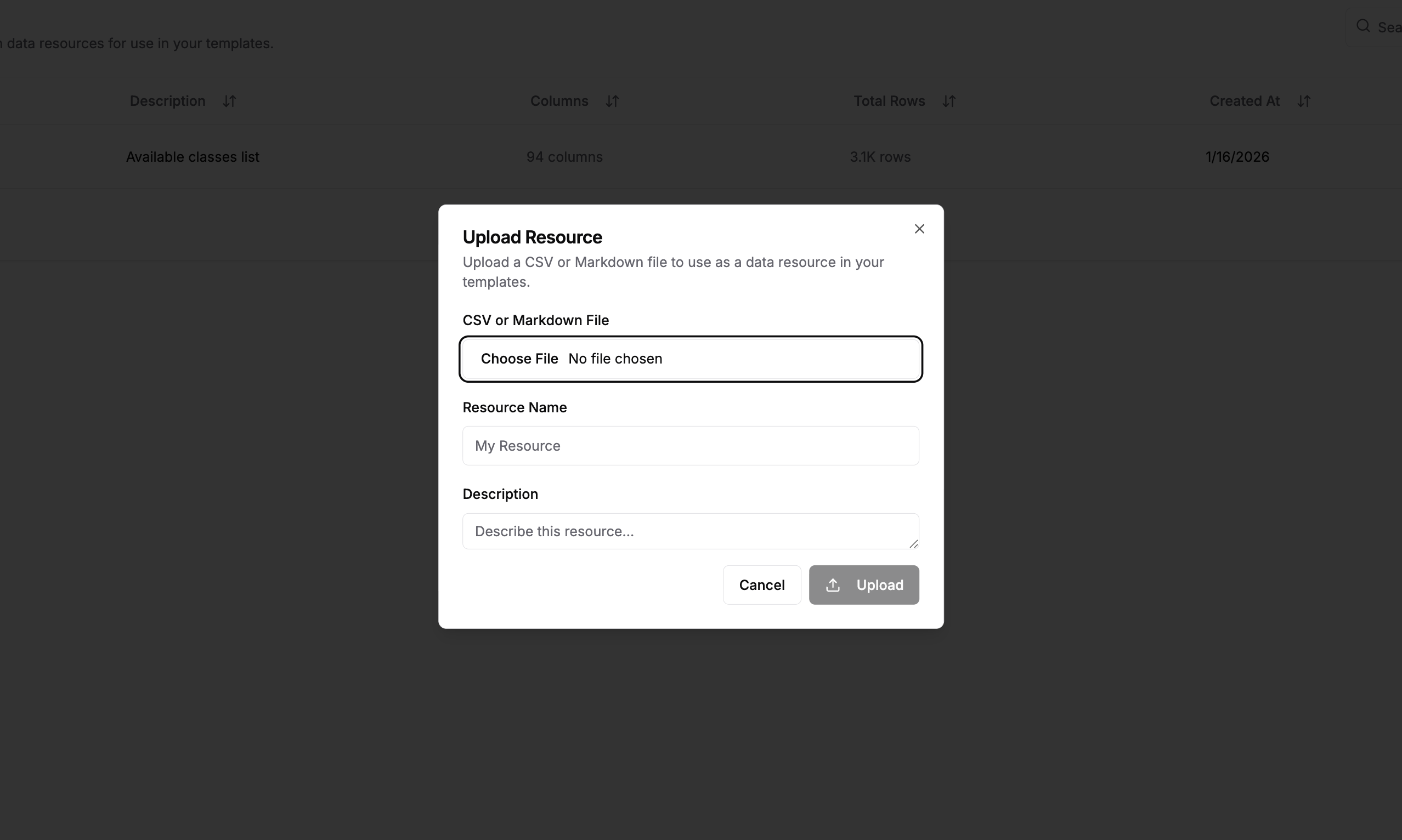
- Click Create New Resource.
- Upload your CSV file.
- Confirm creation.
Once the upload is complete, your full training dataset is now available as a Resource.
Step 2: Create a View inside the resource
Section titled “Step 2: Create a View inside the resource”After your Resource is created, click into it.
Inside the Resource, you can create Views — filtered versions of your dataset.
A View is a targeted cut of your full training catalog. Instead of using your entire dataset for every campaign, you can create focused subsets like:
- Beginner-level trainings only
- Instructor score above 4.5
- Leadership trainings happening this month
Write SQL
Section titled “Write SQL”If you’re comfortable with SQL, you can manually create a filtered view.

Example:
SELECT * FROM data WHERE skill_level = 'Beginner' AND instructor_score > 4.5;You can create as many Views as needed for different campaigns.
Step 3: Use your Resource directly in a template
Section titled “Step 3: Use your Resource directly in a template”Once you’ve created your Resource and defined your Views, you can interact with that data directly inside a specific email test using chat.
This allows you to:
- Explore the dataset
- Understand what attributes are available
- Generate hypotheses
- Create new filtered views
- Power your variants with structured data
1. Explore what’s in your dataset
Section titled “1. Explore what’s in your dataset”Inside your test, you can start by asking simple exploratory questions like:
“What columns do I have in my training Resource?”
The system will respond with a breakdown of your available fields, for example:
- Single-value categories:
skill_level,topic_category,location,certification_included - Numeric fields:
instructor_score,num_enrolled,duration - Multi-value fields (if applicable)
This helps you understand what you can use to shape your messaging and testing strategy.
2. Understand category values
Section titled “2. Understand category values”You can also ask:
“How many values do we have for skill_level?” “What topic categories are available?” “What are the possible values for location?”
The system might respond with something like:
- Skill levels: Beginner, Intermediate, Advanced
- Topic categories: Leadership, Technical, Compliance, HR
- Location: Virtual, In-person
This gives you a clearer picture of the structure of your dataset. At this stage, you’re learning what levers you can pull for testing.
3. Ask focused questions about a subset
Section titled “3. Ask focused questions about a subset”Let’s say your campaign is promoting Virtual trainings only. You could ask:
“For virtual trainings, what skill levels are available?” “Among virtual sessions, which topic categories have the highest instructor scores?” “For beginner virtual trainings, how many sessions are available?”
The AI will analyze your Resource and give you structured answers based on your data. This helps you form test hypotheses based on real information — not guesses.
4. Create Views directly from chat
Section titled “4. Create Views directly from chat”Once you’ve identified a hypothesis, you can ask the system to create filtered cuts (Views) directly in chat.
For example:
“Create one view for Beginner virtual trainings.” “Create another view for Advanced technical trainings with instructor score above 4.5.”
The system will:
- Generate the underlying SQL
- Create the two separate Views
- Save them for use in your test
You now have two structured datasets ready to power variants.
5. Creating variants from Views
Section titled “5. Creating variants from Views”Once you’ve created your Views (for example, Beginner Virtual Trainings and Advanced Technical Trainings (4.5+ instructor score)), you can generate variants directly from them.
In your test chat, simply say:
“Create two variants — one using the Beginner Virtual view and one using the Advanced Technical view.”
The system will automatically:
- Use each View as a separate data cut
- Show how many trainings are in each group
- Generate two dynamic email variants
Each variant pulls real fields from your Resource (like training_name, skill_level, instructor_score, session_date, format, category, certification, etc.) and builds messaging around them.
Example Subject Lines Generated from Resource Fields
Section titled “Example Subject Lines Generated from Resource Fields”Variant 1 — Beginner Virtual View
View filters:
skill_level = 'Beginner'format = 'Virtual'session_date= current month
Subject line examples:
- “Start Your Journey: Beginner Virtual Trainings This Month” (logic: skill_level = Beginner + format = Virtual + session_date = current month)
- “New Beginner Sessions on {{session_date}} — Learn from Top-Rated Instructors” (logic: skill_level = Beginner + session_date + instructor_score)
You can preview the emails to see:
- Which trainings were selected
- How they’re grouped
- What attributes are being highlighted
After launch, both variants are served to users. Over time, the system optimizes delivery based on engagement — showing more of the variant users respond to most.
This allows you to test strategic data cuts (e.g., Beginner vs Advanced) instead of just copy changes.