
Theme Continuity
When you send a sequence of messages — like a 3-email cart abandonment series — you want each message to feel like it comes from the same voice. If email 1 uses a friendly, casual tone, email 2 shouldn’t suddenly switch to aggressive urgency.
Theme continuity solves this automatically. It remembers which theme a user was shown in an earlier message and makes sure later messages in the sequence match.
How It Works
Section titled “How It Works”You pick a dependency template — the earlier message in your sequence — and a theme key to match on (e.g., tone). When a user reaches the current template:
- JustAI checks what the user was last shown for the dependency template (within a lookback window you configure).
- It reads the theme from that earlier message (e.g.,
tone: friendly). - It narrows the current template’s variants to those with the same theme.
If the user hasn’t received the earlier message yet, or if no variants match, nothing is filtered — every variant stays eligible. The filter never blocks content from being delivered.
Example: Cart Abandonment Flow
Section titled “Example: Cart Abandonment Flow”You have a 3-email cart abandonment series. Email 1 (“Gentle Reminder”) has variants tagged tone: friendly and tone: urgent. Email 2 (“Incentive Offer”) has variants with the same tone tags.
With theme continuity on Email 2, pointing at Email 1:
- A user who got the friendly reminder gets a friendly incentive offer.
- A user who got the urgent reminder gets an urgent incentive offer.
- A new user who hasn’t received Email 1 yet sees any eligible variant.
No manual audience segmentation needed — the system handles it.
Prerequisites
Section titled “Prerequisites”Before configuring theme continuity:
- Tag your variants with themes in both the earlier and later templates. See Themes Configuration for setup.
- Use the same theme key in both templates (e.g., both use
toneor both usecolor). - The earlier template must already be sending with
user_idin the API call so that user history is tracked.
Configuration
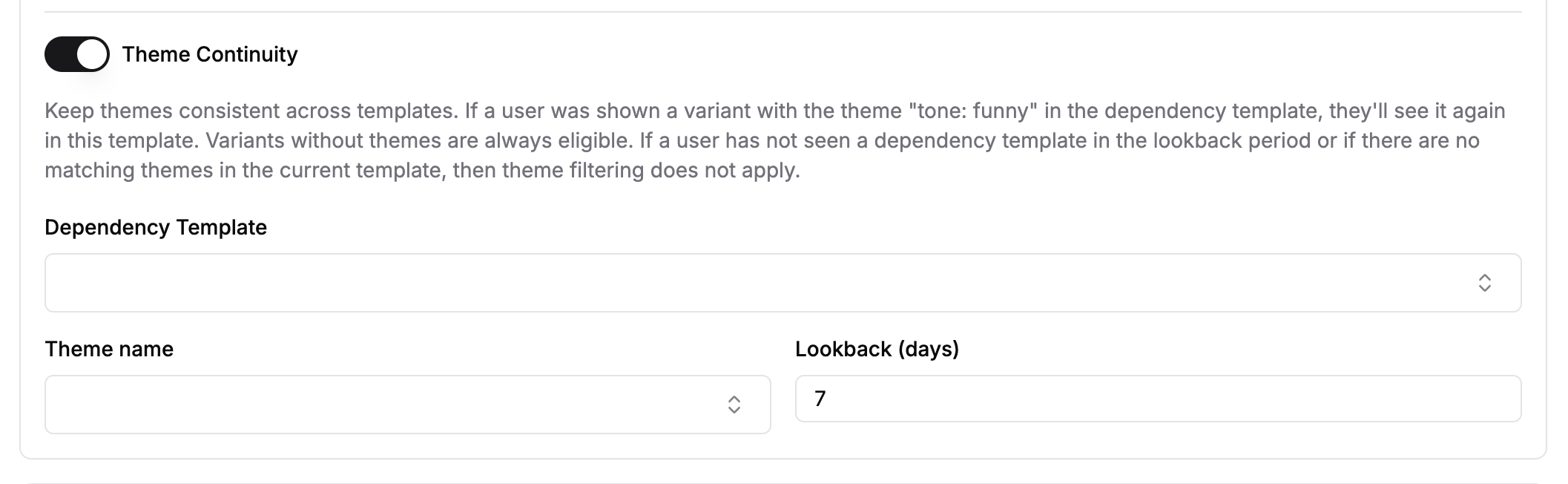
Section titled “Configuration”Theme continuity is configured in a template’s Advanced Settings under the Filter Configuration section.
Settings
Section titled “Settings”| Setting | Description | Default |
|---|---|---|
| Dependency Template | The earlier template in your sequence. JustAI looks at what the user was last shown for this template to determine the theme to match. | Required |
| Theme Name | The theme key to match on (e.g., tone, color). The dropdown is populated from the dependency template’s configured themes. | Required |
| Lookback (days) | How far back to look for the user’s history with the dependency template. | 7 |
Setup Steps
Section titled “Setup Steps”- Navigate to your template’s Configure page.
- Open Advanced Settings.
- Toggle Theme Continuity on.
- Select the Dependency Template from the dropdown. You can search by name, ID, or owner.
- Select the Theme Name from the dropdown.
- Adjust the Lookback window if needed.
- Click Save Changes.
Filtering Behavior
Section titled “Filtering Behavior”Theme continuity is intentionally soft — it prefers matching themes but never leaves a user with no content.
| Scenario | Result |
|---|---|
| User was shown a matching theme earlier | Only variants with that theme are eligible |
| User hasn’t received the dependency template | All variants remain eligible |
| User’s history is older than the lookback window | All variants remain eligible |
| No variants in the current template match the theme | All variants remain eligible (fallback) |
| Variant has no themes tagged | Always eligible (never filtered out) |
Interaction with Experiments
Section titled “Interaction with Experiments”Theme continuity respects A/B experiment bucketing. If a user is in the control group, filtering applies only within control variants. If they’re in the treatment group, it applies only within treatment variants. This prevents the filter from mixing experiment groups.
Related Resources
Section titled “Related Resources”- Core Concepts: Themes — What themes are and how they categorize variants.
- Themes Configuration — How to set up themes at the org level.
- Create Variants — How to tag variants with themes.
- Flows — How templates connect into multi-step journeys.