
Auto-Tune
What is Auto-Tune
Section titled “What is Auto-Tune”Auto-Tune automatically monitors your live experiments and surfaces recommendations to improve performance, without taking control away from you. As traffic accumulates, Auto-Tune evaluates each variant against your key metric. Once a variant reaches 1,000 sends, auto-tune checks for statistical significance, identifying both outperforming and underperforming variants and recommending next steps when meaningful patterns emerge.
Step 1: Receive an Auto-Tune notification
Section titled “Step 1: Receive an Auto-Tune notification”Auto-Tune begins from an experiment that is already running.
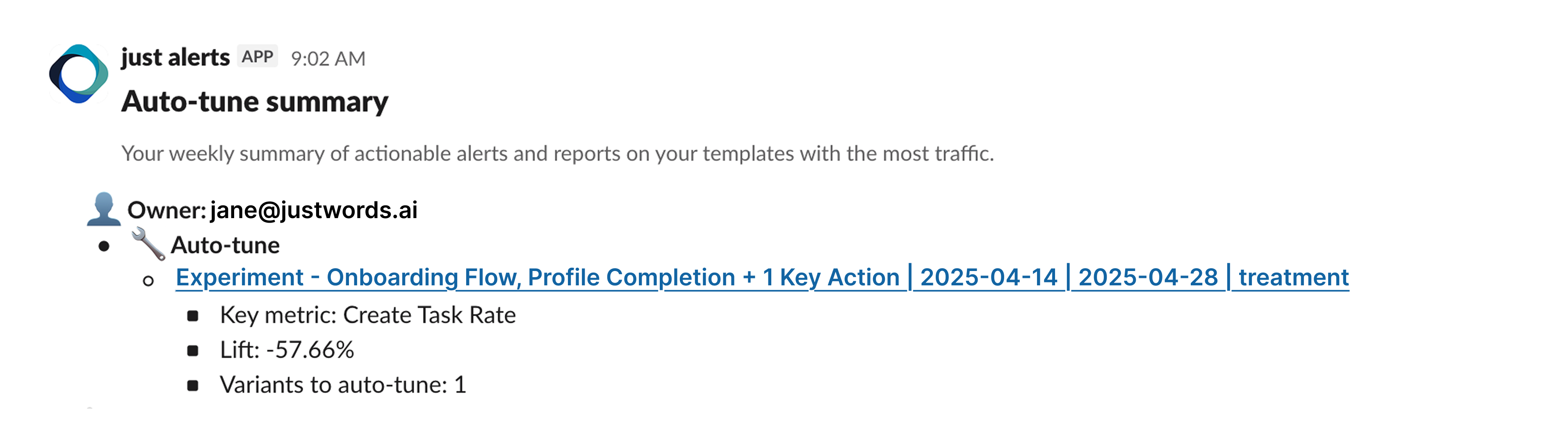
- You receive a Slack notification from an existing experiment that is eligible for auto-tune.
- The notification summarizes:
- Which experiment is running
- The key metric being evaluated
- Whether variants are over- or under-performing
- The notification summarizes:
- Click the notification to view more details.
- This takes you directly to the experiment in Compact Mode in Studio.
At this stage, no changes have been made yet. Auto-Tune is simply surfacing actionable insight from a live experiment.
Step 2: Review experiment performance in Compact Mode
Section titled “Step 2: Review experiment performance in Compact Mode”Once in Compact Mode, you can quickly understand how the experiment is performing so far.
In this view, you’ll see:
- The test that is currently running
- The control and active variants
- Which variants are outperforming
- Which variants are underperforming
- Why certain variants are eligible for auto-tune actions
This summarized view allows you to assess performance at a glance and understand what auto-tune is recommending before any tuning occurs.
Step 3: Address underperforming variants
Section titled “Step 3: Address underperforming variants”Once you’re reviewing results, auto-tune flags variants that are trending down and may be hurting overall performance.
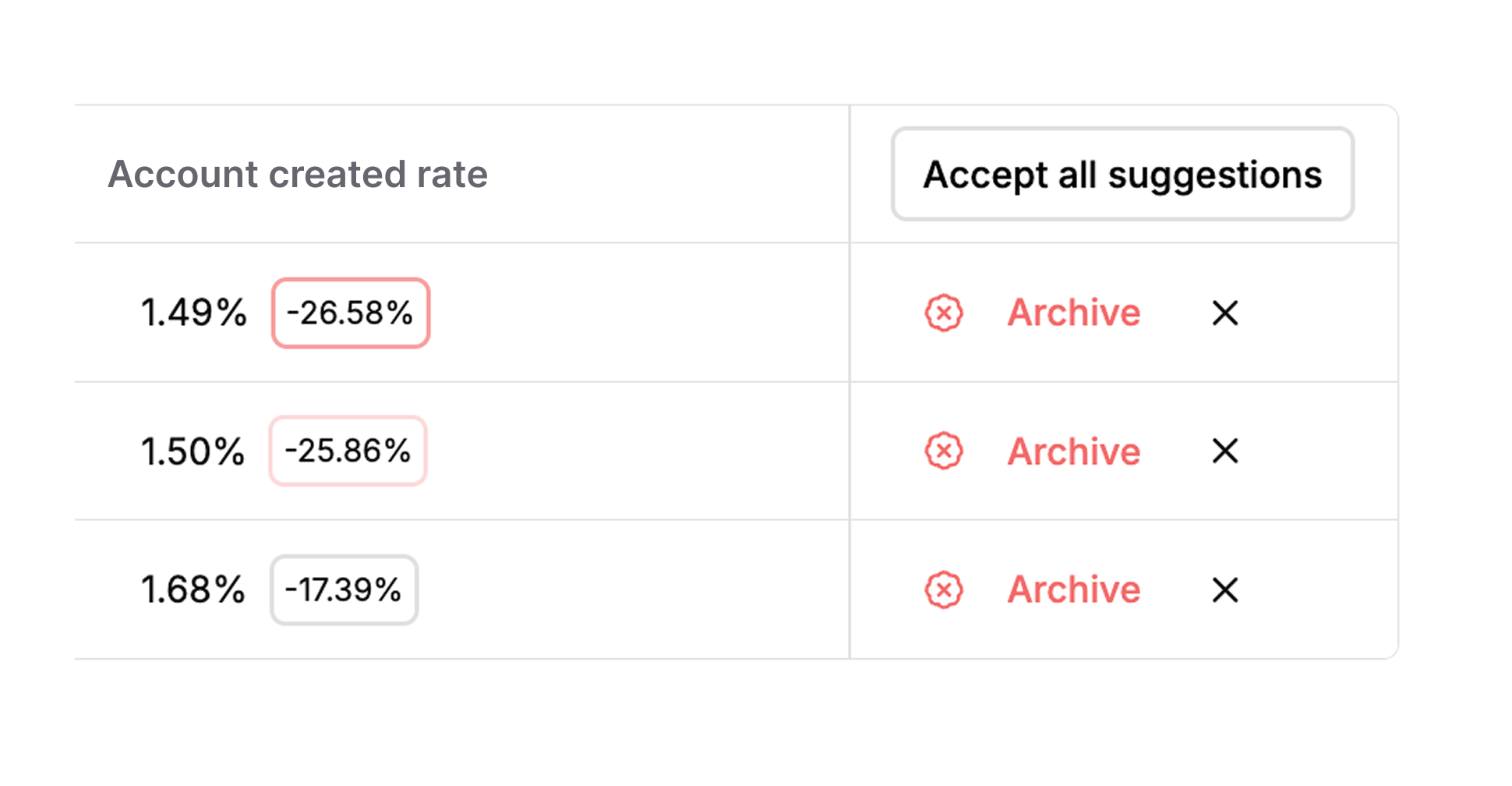
Underperformers are flagged
Section titled “Underperformers are flagged”- Underperforming variants are highlighted with a red “Archive” button
- This indicates auto-tune recommends removing the variant from active traffic
What happens when a variant is archived:
- If other approved variants are available, they continue running
- If no other variants are available, the control is shown instead
- This can slow down testing and may interfere with results
To maintain momentum and avoid interruptions, it’s important to keep at least one approved variant running at all times.
Step 4: Review and approve new variants
Section titled “Step 4: Review and approve new variants”To ensure learning continues, auto-tune suggests new variants when needed.
New variants are suggested
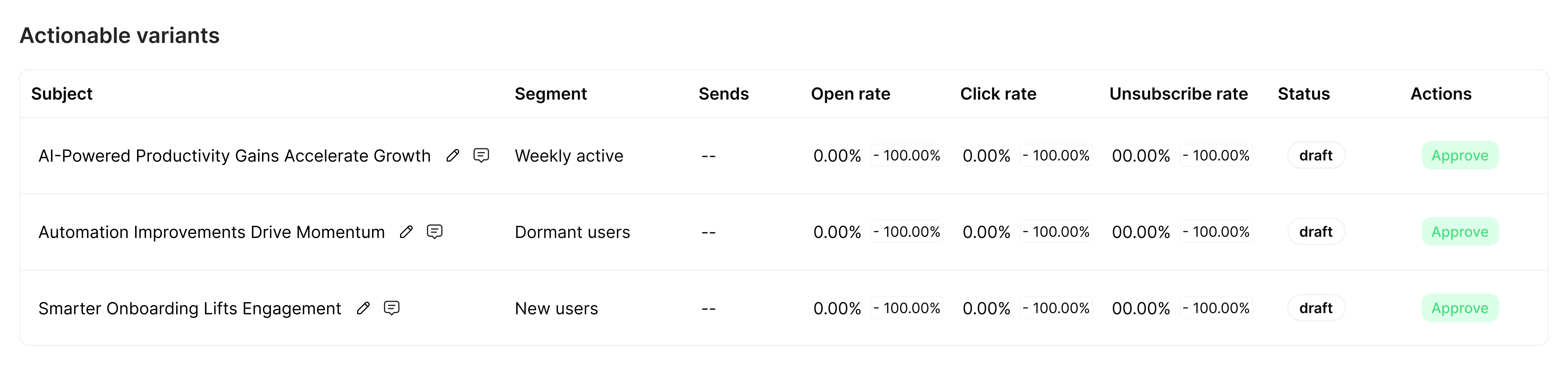
Section titled “New variants are suggested”- Auto-Tune generates draft variants based on successful patterns from your past tests
- These variants:
- Are clearly labeled Auto-generated
- Appear with a green “Approve” button
- Are never published automatically
Nothing goes live without your review.
Approving new variants allows auto-tune to keep testing without disruption and continue optimizing toward better performance.
Step 5: Continuous optimization over time
Section titled “Step 5: Continuous optimization over time”After you’ve reviewed and approved variants, auto-tune continues working in the background.
Over time, this means:
- Your content improves automatically as performance signals accumulate
- Testing maintains momentum and optimizes results in real time
- If performance declines due to fatigue, seasonality, or temporal effects, auto-tune detects it and responds
- You don’t need to manually audit older campaigns, every message stays evergreen, modern, and continuously optimized
Auto-Tune creates an always-on optimization loop, ensuring your content stays relevant and performant without constant manual oversight.