Skip to content 
- Identify your JustAI org slug (usually your company name in all lower case - feel free to ask us).
- Log-in to Segment
- Navigate to “Destinations” and “Add destination”
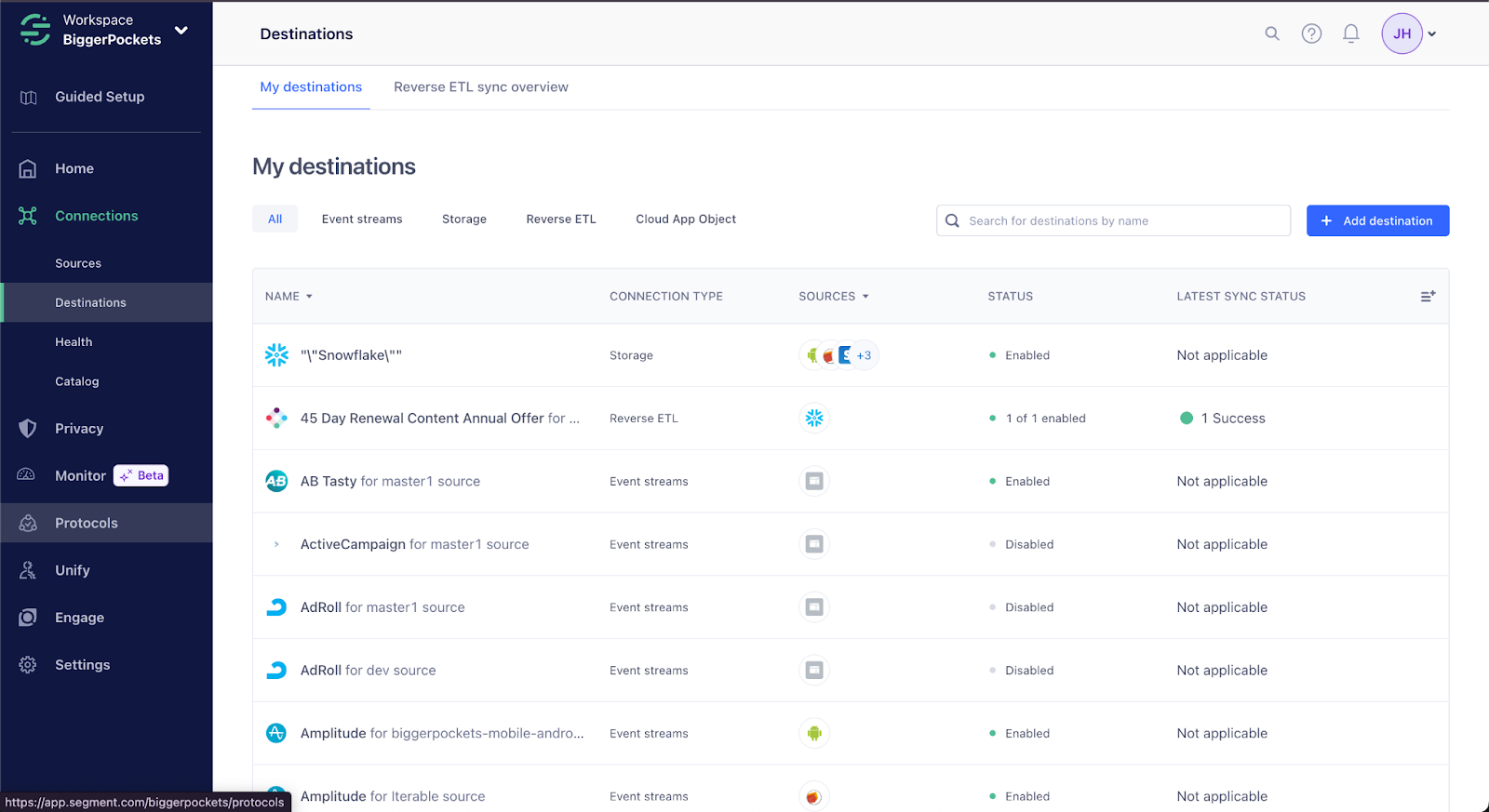
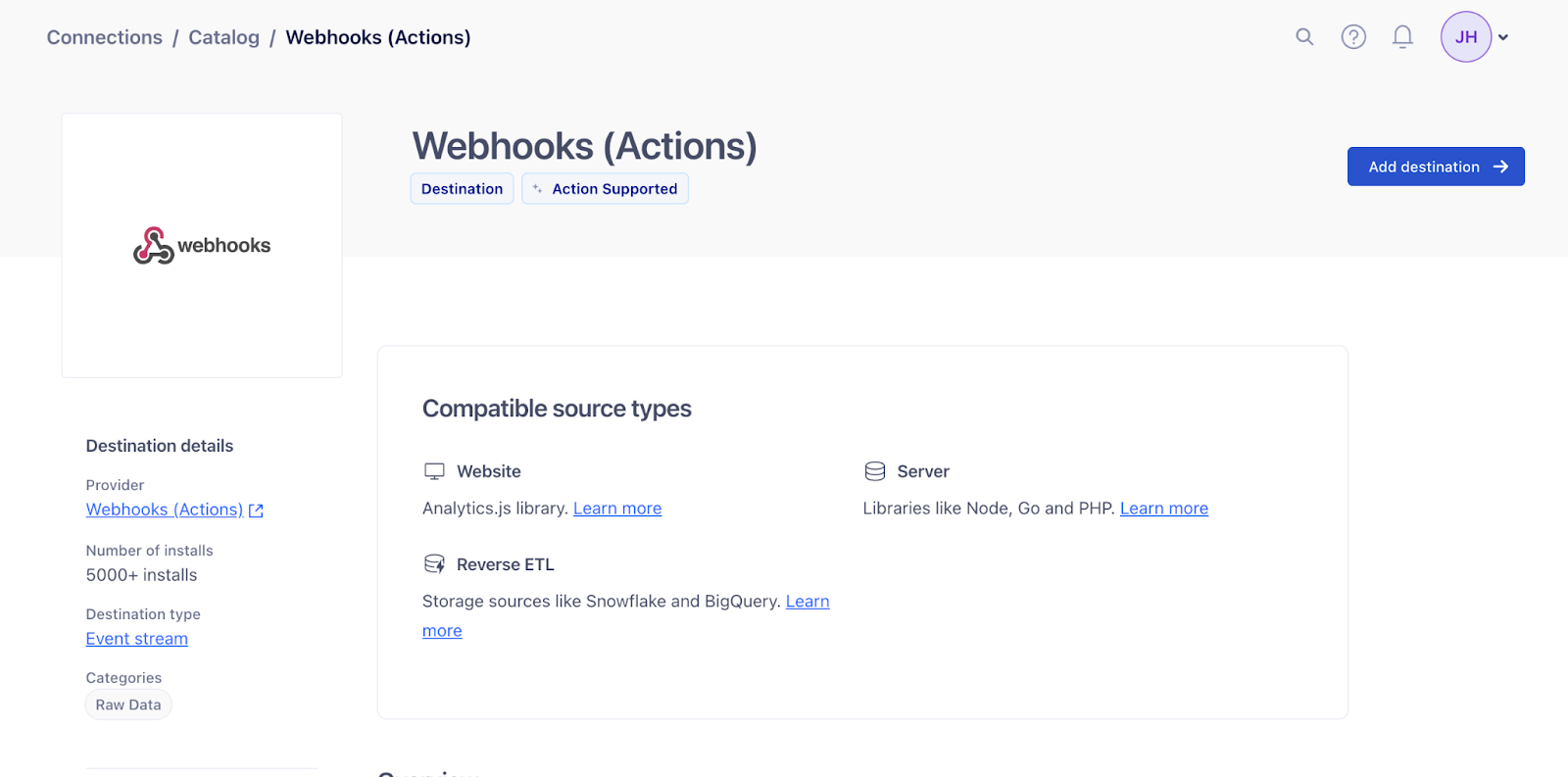
- Choose “Webhooks (Actions)”

- Select a data source and set the “Destination name” to “JustAI Webhook” and leave the dropdown menu as “Fill in settings manually”

- Choose “Create destination”
- In JustAI Console, create an API key.
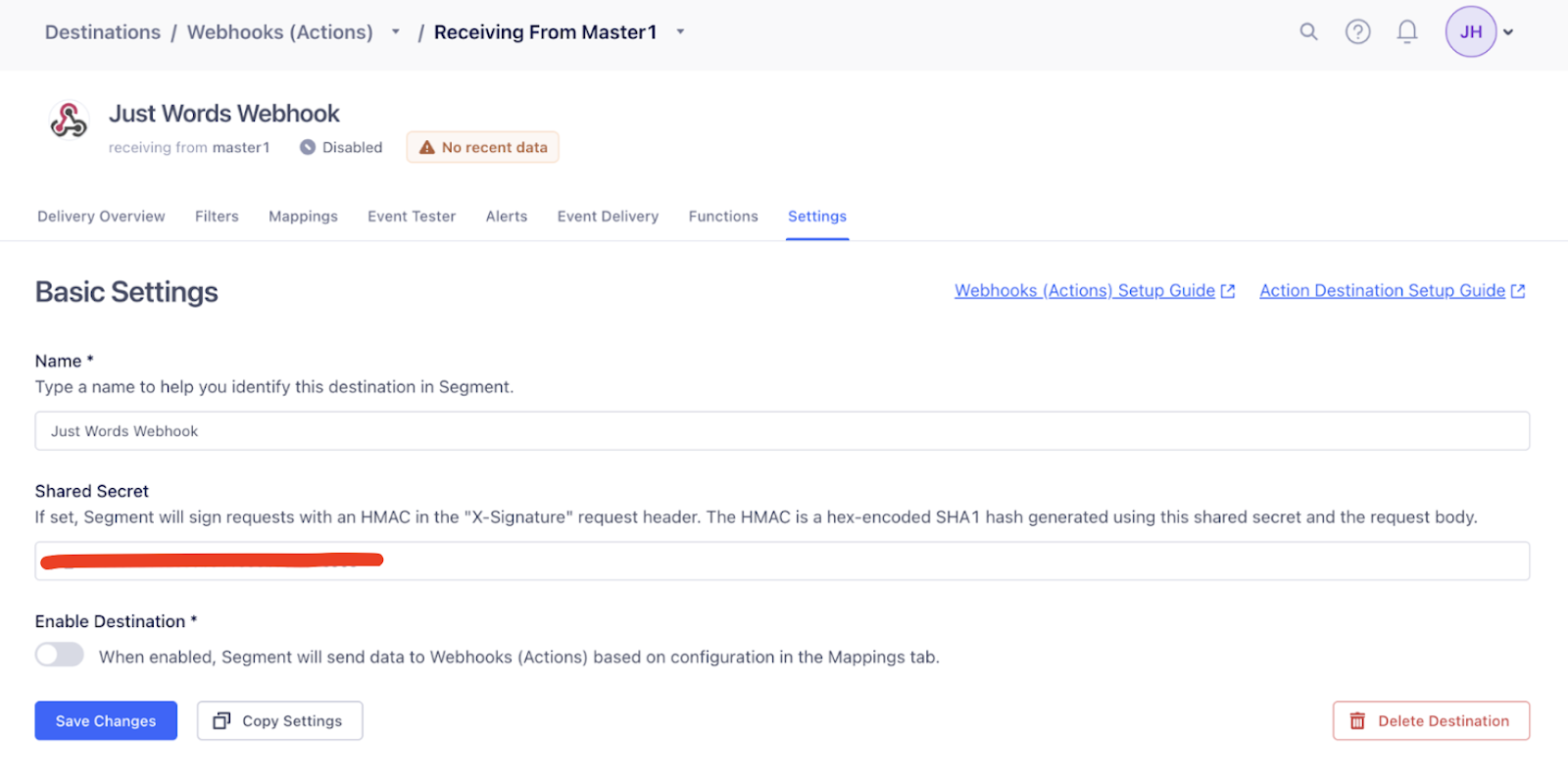
- Set a “Shared Secret” with the API key.
- Click “New Mapping” in the Mappings tab
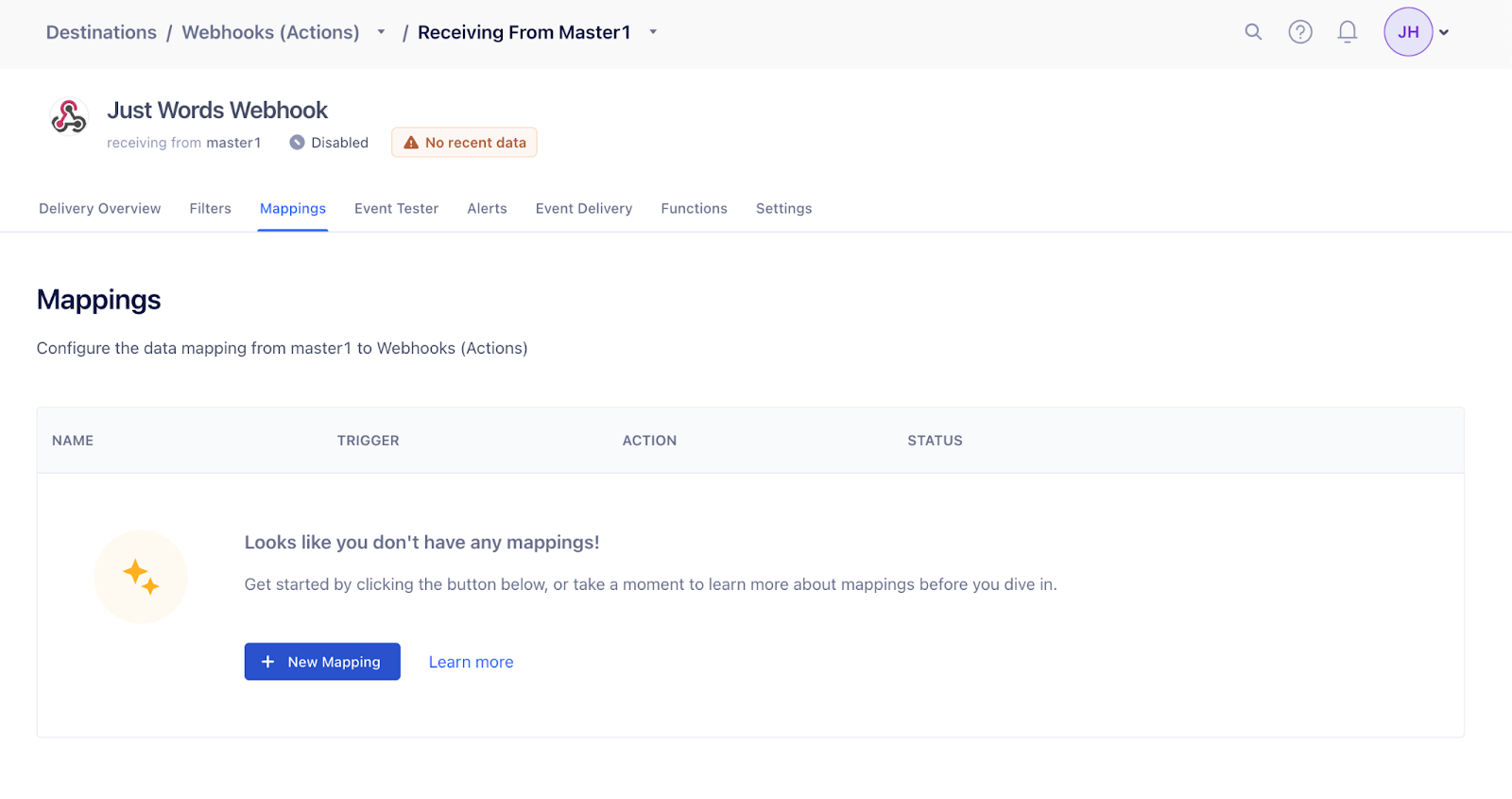
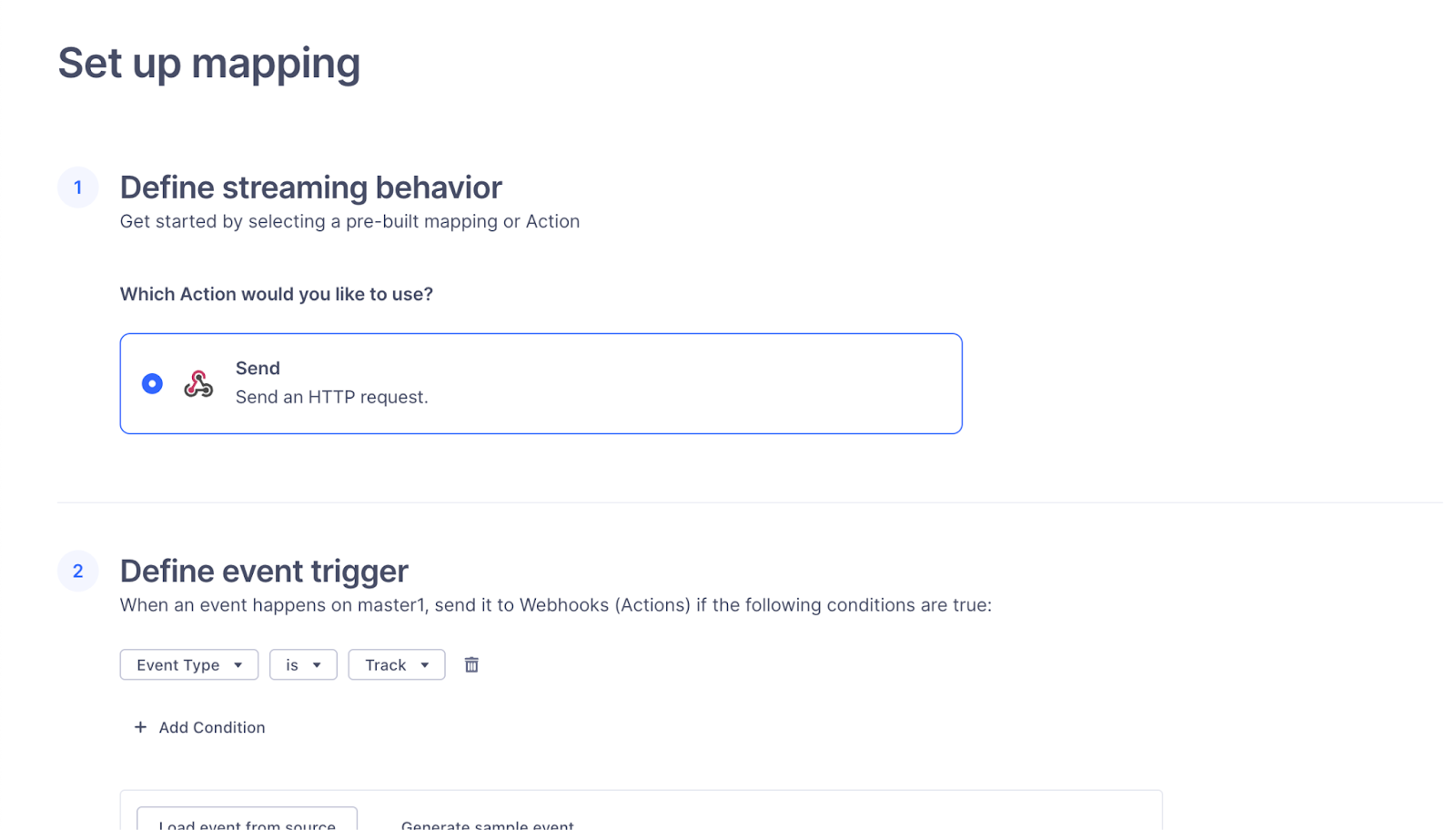
- Set up a mapping and define event trigger
- Most open-ended is “Event Type,” but we can narrow it down to specific events.
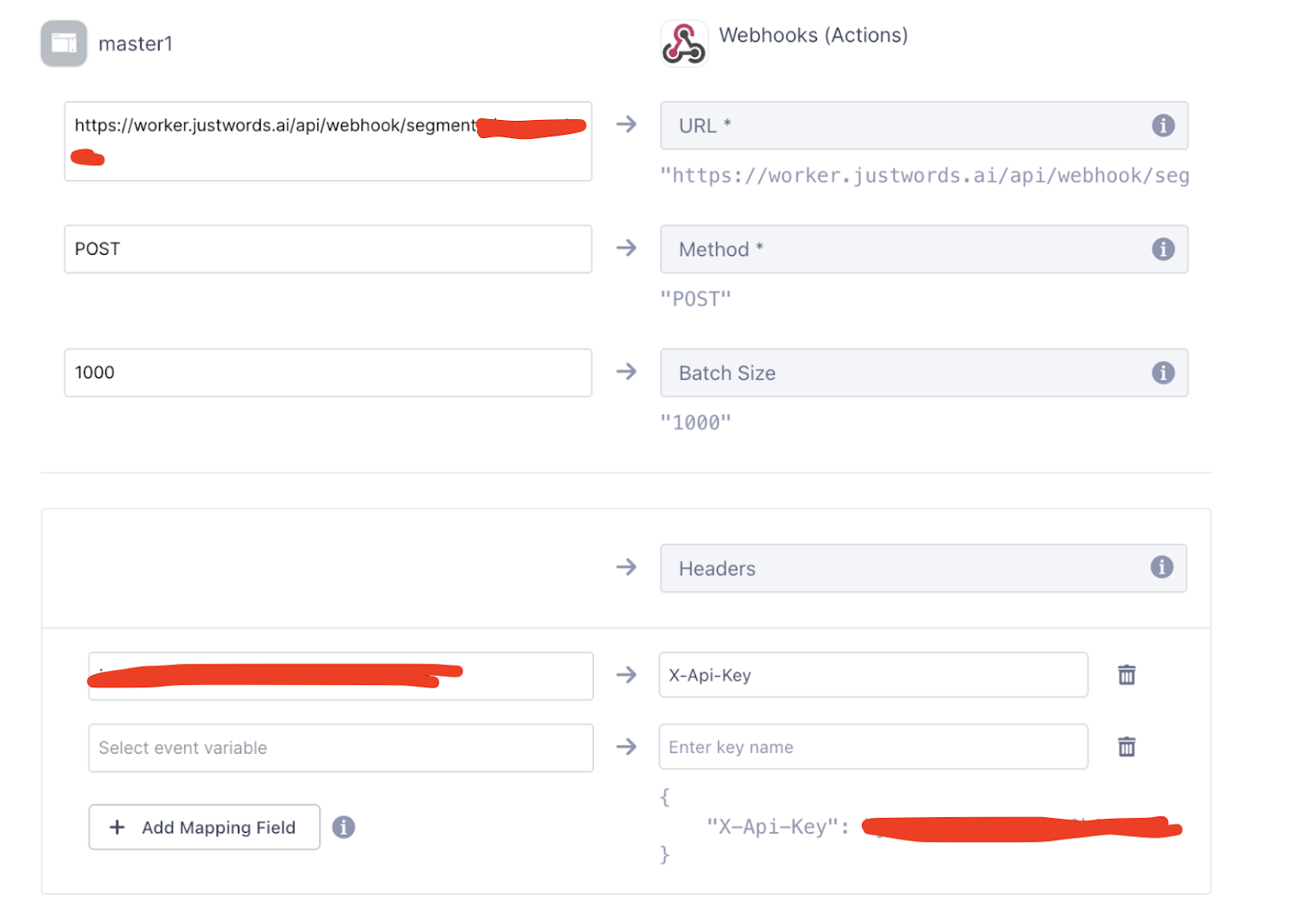
- Set the destination URL to
https://worker.justwords.ai/api/webhook/segment/<org_slug>
- Set the method to POST
- Set the Headers to “X-Api-Key” => API key from earlier
- Set the Batch Size to 1000* (We can look at the source data volume and take an educated guess)
- Press “Next”
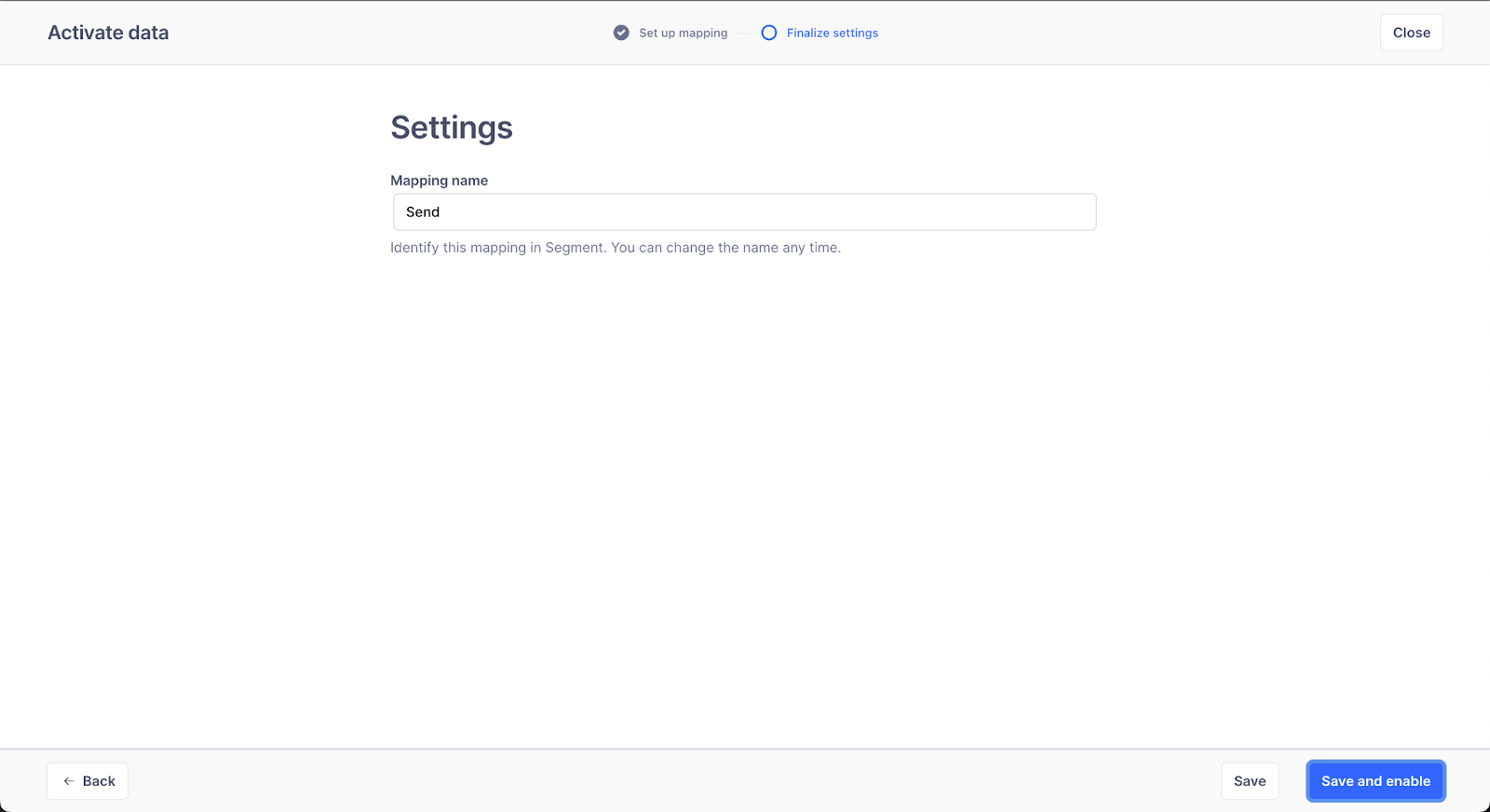
- Save and Enable the webhook
- Under Settings, toggle “Enable Destination” and click “Save Changes”
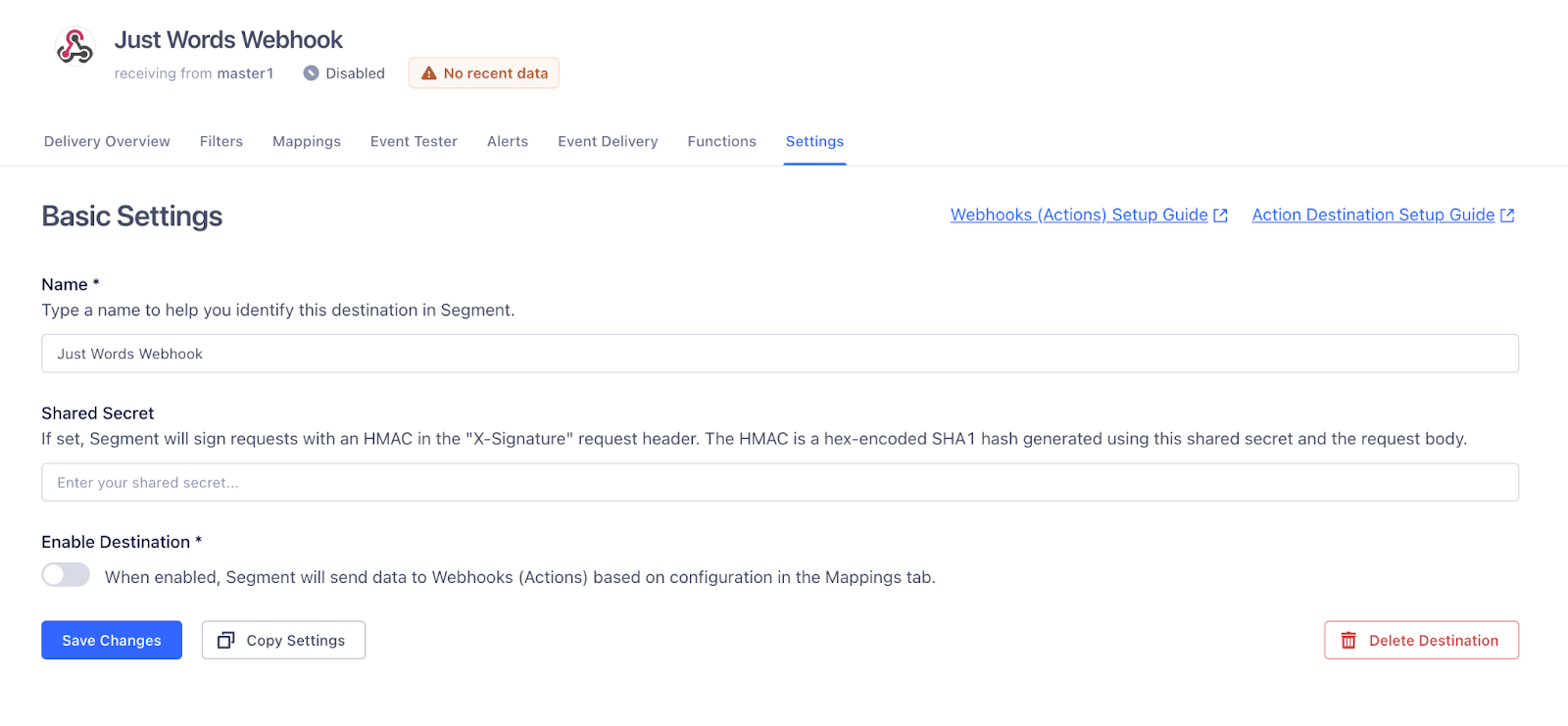
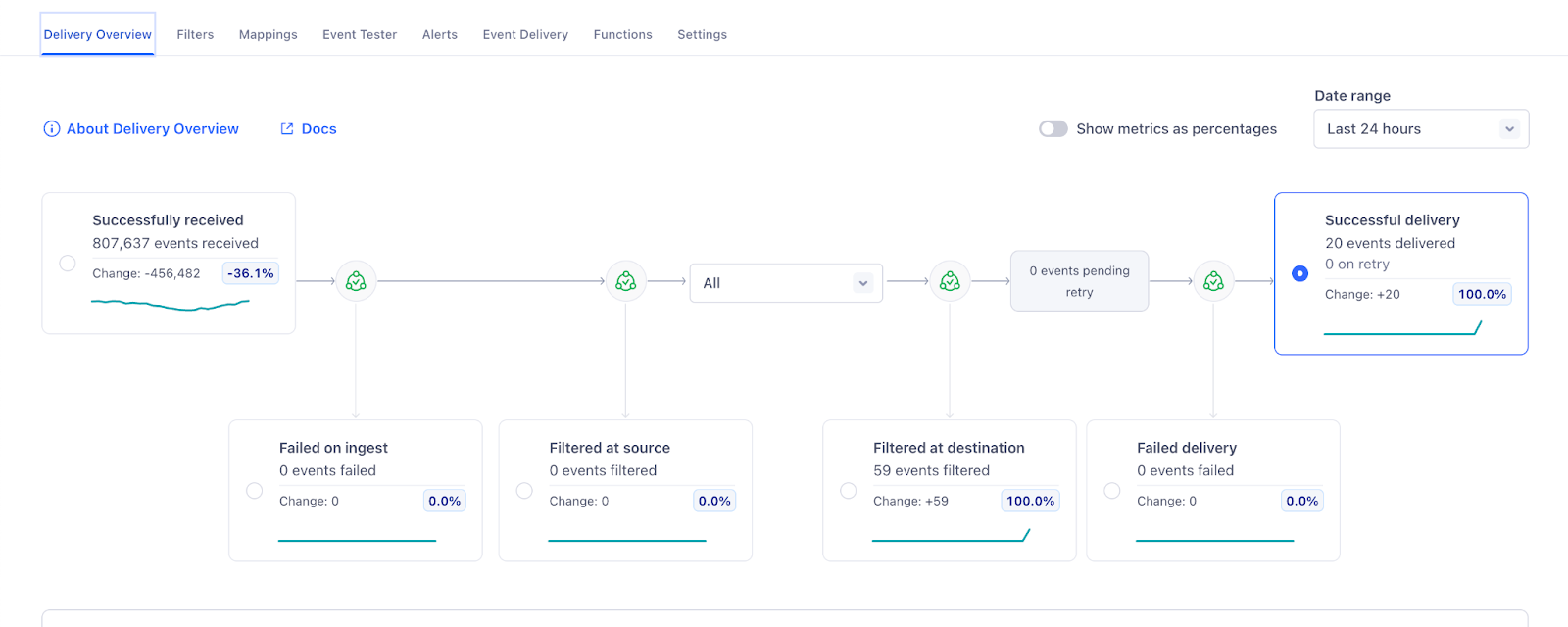
- We should now start seeing traffic to the destination after some time