Marketo
This setup lets Marketo pull personalized copy (subject, preheader, CTA, etc.) from the JustAI API before sending an email. Because Marketo cannot fetch remote data at render time, we pre-hydrate custom fields using a webhook inside a triggered Smart Campaign, then render those fields in the email.
Before You Start
Section titled “Before You Start”- Identify your JustAI org slug (usually your company name in all lower case - feel free to ask us).
1) Create user-level custom fields in Marketo (one-time set up)
Section titled “1) Create user-level custom fields in Marketo (one-time set up)”Create one custom field for every variable you plan to hydrate from JustAI. You can add new ones in Admin → Field Management → New Custom Field. Keep naming consistent (jw_ prefix). These fields must exist before you can map webhook responses to them.
| Example Field Label | API Name (SOAP) | Type |
|---|---|---|
| JW Subject | jw_subject | String |
| JW Preheader | jw_preheader | String |
| JW CTA | jw_cta | String |
2) Configure the JustAI Webhook (one-time set up)
Section titled “2) Configure the JustAI Webhook (one-time set up)”Configure a new custom webhook to be used to access the JustAI API. This can be reused on any new message.
- Webhook Name:
JustAI Webhook - Request Type:
GET - URL:
https://worker.justwords.ai/api/generate/<org_slug>?template_id={{campaign.id}}&tracking_id={{lead.id}}-{{campaign.id}}-{{system.dateTime}}&user_id={{lead.id}}- Headers:
X-Api-Key: <YOUR_JUSTAI_API_KEY>Content-Type: application/json-
Response Type: JSON
-
Response Mappings:
| Response Attribute | Marketo Field |
|---|---|
copy.vars.subject | lead.jw_subject |
copy.vars.preheader | lead.jw_preheader |
copy.vars.cta | lead.jw_cta |
🧠 How it works: When the webhook fires, JustAI returns a JSON response such as:
{ "copy": { "id": "abc123", "vars": { "subject": "Fall Sale Starts Now", "preheader": "Shop early and save 20%", "cta": "Start Shopping" } }}3) Build a dynamic email template
Section titled “3) Build a dynamic email template”For every message. Replace any static text with the new field tokens.
Example subject line:
{{lead.jw_subject:default=Fall Sale Starts Now}}Example preheader:
{{lead.jw_preheader:default=Shop early and save 20%}}Example CTA:
<a href="https://yourstore.com">{{lead.jw_cta:default=Shop Now}}</a>These tokens pull the webhook-enriched values at send time. If any are missing, the :default= fallback ensures a safe baseline message.
4) Create a triggered Smart Campaign (required)
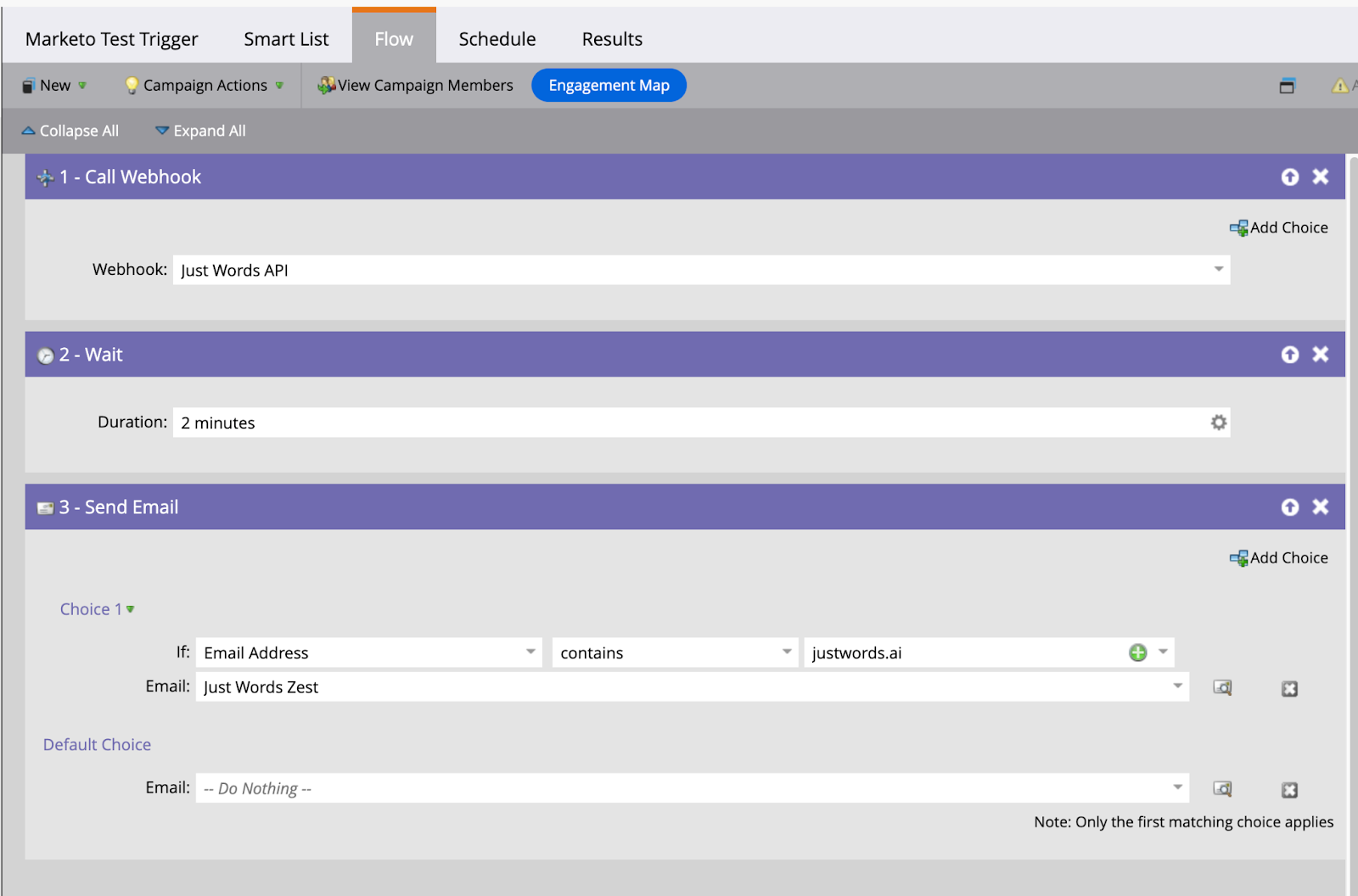
Section titled “4) Create a triggered Smart Campaign (required)”You must set up a triggered campaign (or update an existing one) with the following skeleton:
Flow Steps:
- Call Webhook:
JustAI Generate - Wait: 1–2 minutes (to allow webhook + field update)
- Send Email: your dynamic email using
{{lead.jw_*}}tokens
5) Update your Batch (Scheduled) Campaign - Optional
Section titled “5) Update your Batch (Scheduled) Campaign - Optional”Webhooks only run in triggered campaigns — not in batch or scheduled runs. If your campaign is set up as a batch (scheduled) campaign, you must refactor your set up into two linked campaigns
- Batch Campaign (Qualifier):
- Keep all your existing Smart List filters here (e.g., audience, segmentation, etc.).
- Inside the flow, Replace the Send Email step with Request Campaign pointing at the campaign set up in Step 4
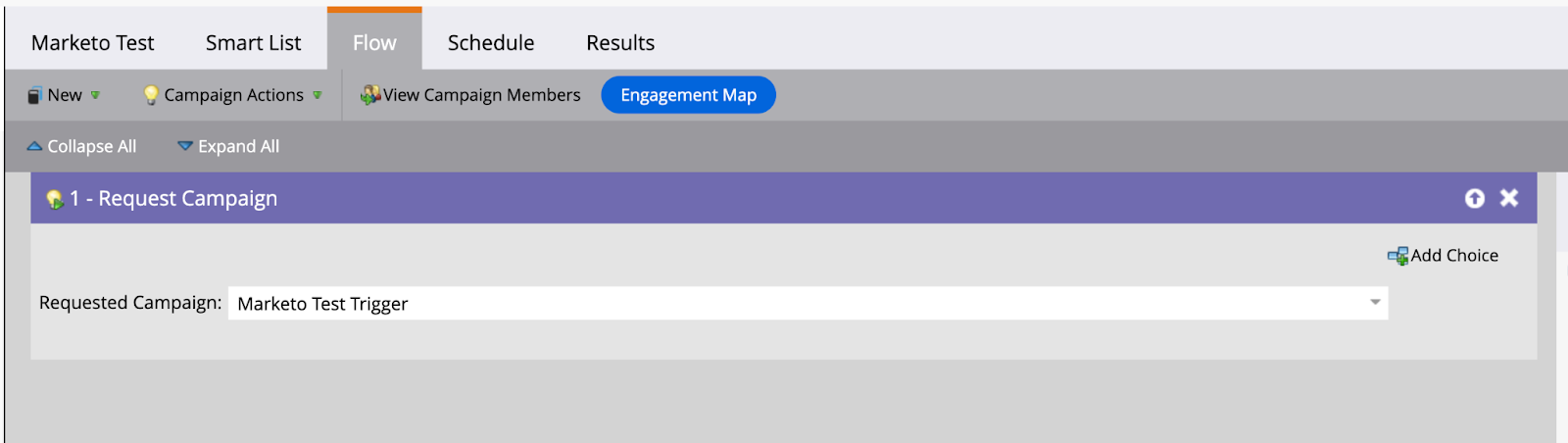
- Triggered Campaign (Executor):
- Keep all your existing Smart List filters here (e.g., audience, segmentation, etc.).
- Inside the flow, Replace the Send Email step with Request Campaign pointing at the campaign set up in Step 4