
Iterable
Template Setup (Iterable Data Feed)
Section titled “Template Setup (Iterable Data Feed)”- In Iterable, create a Data Feed named
JustAI. - Set the Data Feed URL (POST) to:
https://worker.justwords.ai/api/generate/<org_slug>?template_id={{ defaultIfEmpty clientTemplateId templateId }}&tracking_id={{ messageId }}©_id={{ copy_id }}&user_id={{ defaultIfEmpty userId email }}
- Add a custom header:
- Name:
X-Api-Key - Value: your JustAI API key (from Settings → API Keys in JustAI)
- Name:
- Copy the Data Feed ID from Iterable and save it in JustAI:
- Settings → Integrations → Iterable
- Paste the Iterable server-side API key and Data Feed ID.
Personalization
Section titled “Personalization”The default Data Feed URL works for basic setups. To personalize generated copy based on user attributes, you can pass additional data to JustAI using the attrs query parameter.
Basic Syntax
Section titled “Basic Syntax”Append custom attributes to the Data Feed URL using the attrs.<attribute_name> pattern with Iterable Handlebars fields:
&attrs.<attribute_name>={{ <handlebars_field> }}For example, to pass a user’s persona:
&attrs.persona={{ persona }}Multiple Attributes
Section titled “Multiple Attributes”Chain multiple attributes together:
&attrs.persona={{ persona }}&attrs.plan={{ planType }}&attrs.city={{ city }}Using Handlebars Helpers
Section titled “Using Handlebars Helpers”You can use Iterable’s Handlebars helpers for fallback values or conditional logic:
&attrs.plan={{ defaultIfEmpty planType "free" }}Event Attributes
Section titled “Event Attributes”For event-triggered journeys, event fields are directly accessible via Handlebars. Pass event data as attributes:
&attrs.product_category={{ productCategory }}&attrs.item_count={{ itemCount }}Full Example URL
Section titled “Full Example URL”Here’s a complete Data Feed URL with personalization attributes:
https://worker.justwords.ai/api/generate/<org_slug>?template_id={{ defaultIfEmpty clientTemplateId templateId }}&tracking_id={{ messageId }}©_id={{ copy_id }}&user_id={{ userId }}&attrs.persona={{ persona }}&attrs.plan={{ defaultIfEmpty planType "free" }}&attrs.loyalty_tier={{ loyaltyTier }}Configure the Template in JustAI
Section titled “Configure the Template in JustAI”- In JustAI, open the template and go to Integration Settings.
- Select
Iterableand set the treatment Template ID and Campaign ID. - If you run a control, set the control Template ID and Campaign ID.
- Save changes, then use the JustAI template in your Iterable Journey or Campaign.
JustAI can ingest engagement and custom event data exported from your Iterable instance. If you already track custom events in Iterable, this is the easiest way to forward those events to JustAI.
What Ingress Includes
Section titled “What Ingress Includes”JustAI ingests Iterable reporting events via Webhooks. This provides the core metrics needed for analysis (opens, clicks, sends, conversions), as well as custom metrics that are important to you.
Before You Start
Section titled “Before You Start”- Identify your JustAI org slug (usually your company name in all lower case - feel free to ask us).
Standard Events (System Webhook)
Section titled “Standard Events (System Webhook)”To collect the standard engagement events, you can set up a System Webhook.
- Go to
Integrations → System Webhooks. - Click
Create Webhook. - For the API URL, enter the following JustAI API endpoint URL (be sure to replace the
org_slugwith your actual org name):https://worker.justwords.ai/api/webhook/itbl/<org_slug>?campaignId={{campaignId}}
- Click
Create. - Select which events you want the webhook to process (for example: Email Click, Email Open, Email Unsubscribe, Email Blast Send).
- Save and Enable.
Custom Events (Journey Webhook)
Section titled “Custom Events (Journey Webhook)”To collect custom events, you can set up a Journey Webhook.
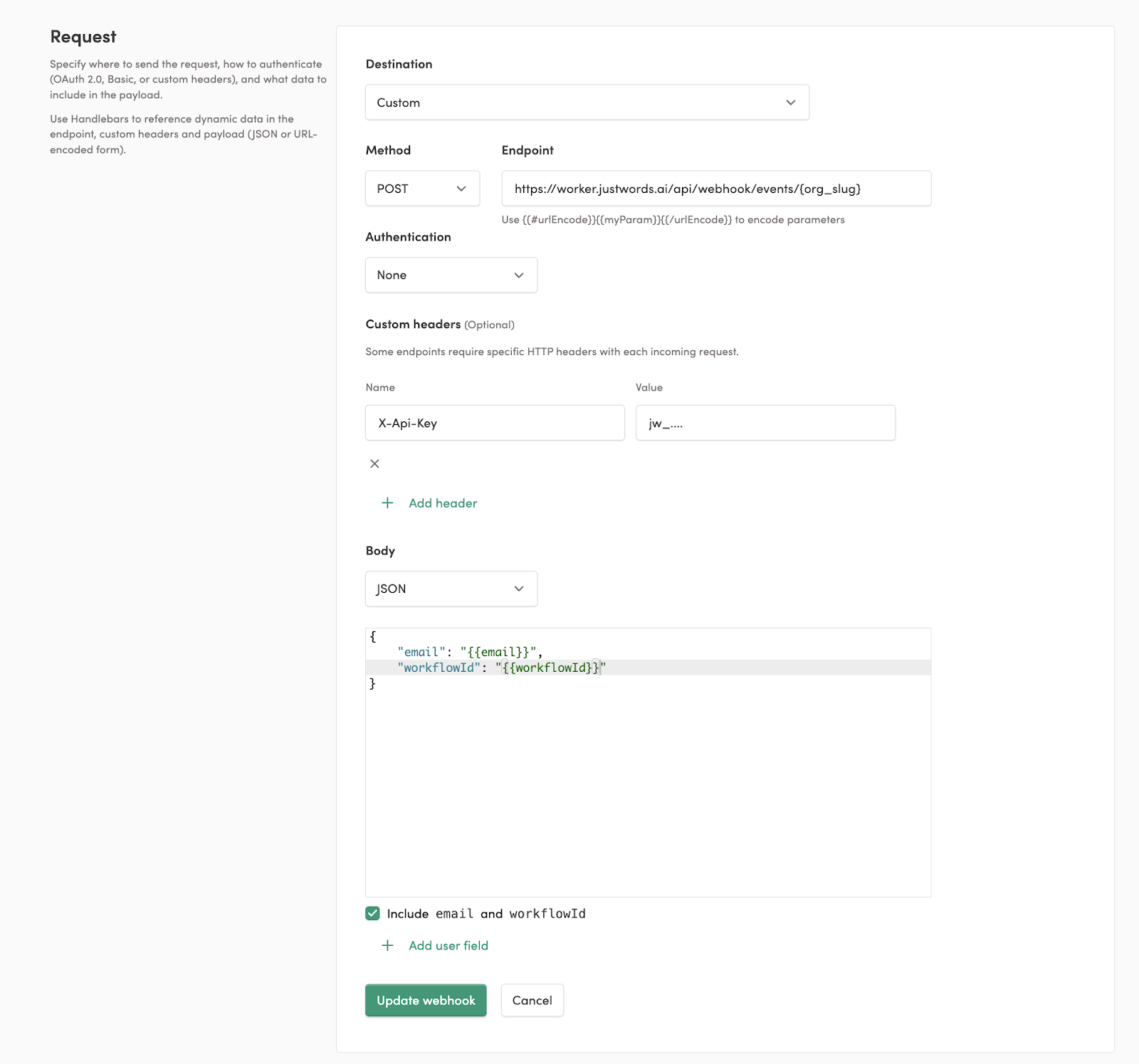
- Destination:
Custom - Method:
POST - Endpoint:
https://worker.justwords.ai/api/webhook/events/<org_slug>(be sure to replace theorg_slugwith your actual org name) - Headers:
X-Api-Key- You can generate the value for the header by generating an API key here.
- Body:
{ "email": "{{email}}", "workflowId": "{{workflowId}}"}- Update webhook.
To send a custom event, create a new Journey that is triggered by the custom event you want to forward, and then set up a Journey Webhook that points to the webhook defined above.
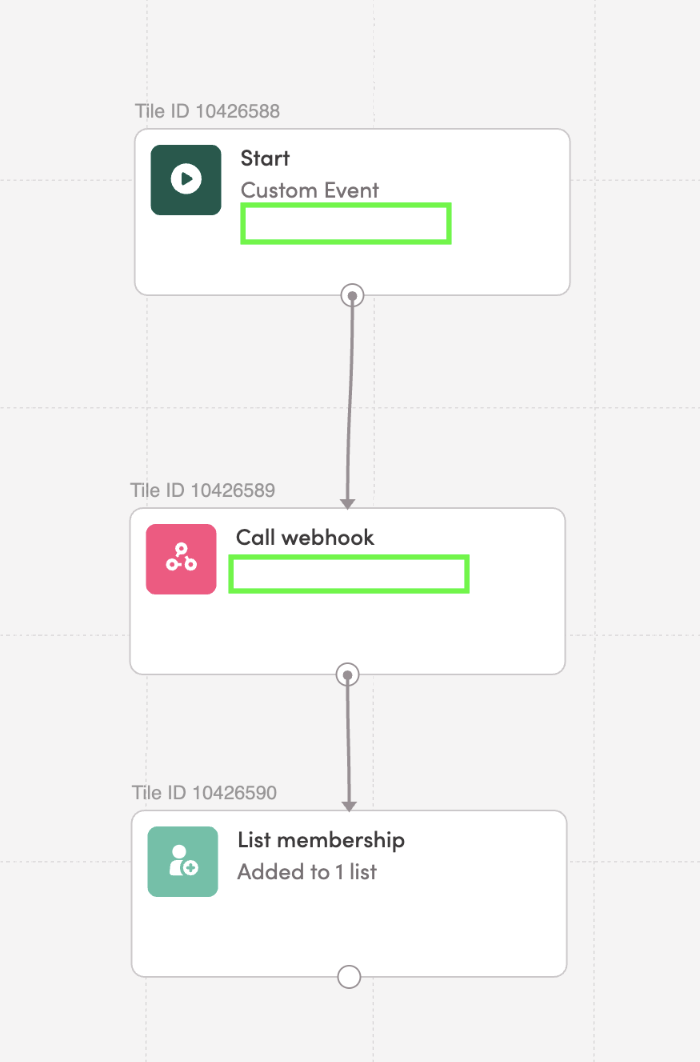
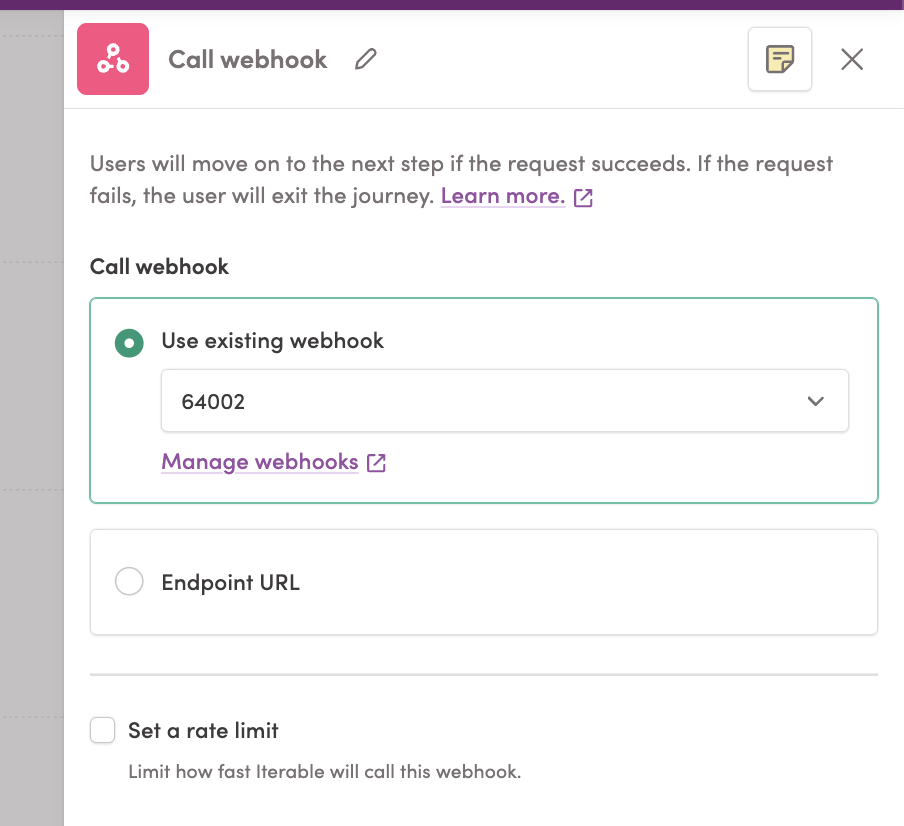
You can define a Journey per custom event, and we recommend organizing them into a JustAI Export directory.
JustAI can ingest data from Redshift to a shared S3 bucket. This connection can contain all relevant custom metrics that you may want to track.
Integration Steps
Section titled “Integration Steps”- Create an IAM role for the export:
- Recommended Permissions:
s3:PutObject,s3:ListBucket,s3:GetBucketLocation - Share the ARN role with JustAI. JustAI team will grant read/write permissions to a shared S3 bucket.
- Recommended Permissions:
- Unload data to the shared S3 bucket using Redshift (documentation).
- Sample query to export a table
UNLOAD (' SELECT event_timestamp, event_date, event_name, user_id_or_email -- Need some way to join against ESP data FROM public.custom_metrics')TO 's3://justwords-metrics-ingest/redshift/{org_slug}'IAM_ROLE 'arn:aws:iam::<acct>:role/MyRedshiftRole'PARQUETPARTITION BY (event_date)INCLUDE -- keep partition columns in the filesALLOWOVERWRITE -- overwrite existing keys under the prefix-- REGION 'us-east-1' -- required if Redshift is in another region;Proposed Redshift Query
Section titled “Proposed Redshift Query”The Iterable System Webhook contains the email engagement data like sends, opens, clicks, etc, but it also contains PII data like email addresses, so we can specify exactly which data to send with Redshift as long as the Iterable data is replicated in your data warehouse. Iterable docs on System Webhooks. For custom events, the main criteria is that the event name is a string (e.g. “purchases”, “signup”), and there must be a key like a user ID or an email that we can use to join the custom event data with the data that we are getting from the ESP (e.g. Iterable, Braze, Customer.io). Usually, what we do is to “weakly attribute” a user’s custom event if it happened within 24-72 hours of an email send. Therefore, the custom metrics & the ESP data need to have a user ID and a timestamp to perform this join.
We usually join the ESP data and the custom events on our side, but since we don’t want to share user IDs either, we can do the join in Redshift so that the exported data is scrubbed.
We can consult on the actual query, but it might look something like this (depending on how the data is stored):
-- Produces a single unified event stream:--   event_name, event_timestamp, message_id, template_id, campaign_id-- ESP events pass through; custom events are attributed to the latest prior send within 24h.WITH iterable_events AS (  SELECT    event_name,      -- "emailSend", "emailClick", "emailOpen", etc.    event_timestamp,    message_id,      -- Uniquely identifies the message that was sent    template_id,     -- Identifier for the Iterable template    campaign_id,     -- Identifier for the Iterable campaign    user_id          -- NOT shared in the final query  FROM public.iterable  WHERE event_name IN (     -- Can be extended with other metric types'emailSend','emailOpen','emailClick','emailUnsubscribe'  )),
iterable_sends AS (  SELECT    user_id,    message_id,    template_id,    campaign_id,    event_timestamp AS send_ts  FROM public.iterable  -- Can be extended with smsSend, pushSend, etc.  WHERE event_name IN ('emailSend')),
custom_events AS (  SELECT    user_id,        -- NOT shared in final query    event_name,     -- e.g., 'purchase', 'page_view', 'signup'    event_timestamp AS event_ts  FROM public.custom_events  WHERE event_name IN ('purchase','page_view')  -- extend as needed),
-- Candidate sends within lookback window prior to each custom eventsend_candidates AS (  SELECT    ce.user_id,    ce.event_name,    ce.event_ts,    s.message_id,    s.template_id,    s.campaign_id,    s.send_ts,    ROW_NUMBER() OVER (      PARTITION BY ce.user_id, ce.event_name, ce.event_ts      ORDER BY s.send_ts DESC    ) AS rn  FROM custom_events ce  JOIN esp_sends s    ON s.user_id = ce.user_id   AND s.send_ts <= ce.event_ts   -- lookback window (can be adjusted)   AND s.send_ts > DATEADD(hour, -24, ce.event_ts)),
-- Attributes the custom event to the most recent send within 24hbest_send AS (  SELECT *  FROM send_candidates  WHERE rn = 1)
-- FINAL unified streamSELECT  e.event_name,  e.event_timestamp,  e.message_id,  e.template_id,  e.campaign_idFROM esp_events e
UNION ALL
-- Custom events attributed to a send (only those that matched)SELECT  ce.event_name,  ce.event_ts AS event_timestamp,  b.message_id,  b.template_id,  b.campaign_idFROM custom_events ceJOIN best_send b  ON b.user_id = ce.user_id AND b.event_name = ce.event_name AND b.event_ts   = ce.event_ts
ORDER BY event_timestamp;
JustAI can ingest engagement and custom event data exported from your Databricks workspace. We support two secure patterns:
Integration Steps
Section titled “Integration Steps”- Direct S3 export (recommended): Write a scrubbed, columnar dataset (Parquet) to the shared bucket prefix we provision for your org, e.g.
s3://justwords-metrics-ingest/databricks/{org_slug}/.... - Delta Sharing (alternative): Share a PII‑scrubbed view to JustAI via Unity Catalog Delta Sharing. We’ll consume the shared table (Databricks‑to‑Databricks or open sharing) and mirror it into our ingestion layer.
Both approaches avoid sending PII to JustAI. You can perform joins between Iterable system events and your custom events inside your workspace and export only the fields JustAI needs for analytics.
Option A (Recommended): Direct S3 Export from Databricks
Section titled “Option A (Recommended): Direct S3 Export from Databricks”1) Access setup
Section titled “1) Access setup”Goal: Allow your Databricks clusters to write to s3://justwords-metrics-ingest/databricks/{org_slug}.
- Create an AWS IAM role that Databricks can assume for export with these minimum permissions on the bucket/prefix:
s3:PutObject,s3:ListBucket,s3:GetBucketLocation
- Share the role ARN with the JustAI team. We’ll add the bucket policy to permit that role to write under your org’s prefix.
- (Unity Catalog recommended): Create a Storage Credential for that IAM role and an External Location pointing at your org’s S3 prefix. Grant your writers
WRITE FILESon the external location. If you prefer not to use External Locations, you can still write directly to the S3 path with Spark, as long as your cluster has the IAM role attached (instance profile / assume‑role).
2) Unified, scrubbed export model
Section titled “2) Unified, scrubbed export model”We ingest a single unified event stream with these columns:
event_name(string) — e.g.,emailSend,emailOpen,emailClick,emailUnsubscribe,purchase,signup, etc.event_timestamp(timestamp) — event time in UTC.event_date(date) —DATE(event_timestamp); used for partitioning.message_id(string, nullable) — unique ID for the email/SMS/push message.template_id(string, nullable) — ESP template identifier.campaign_id(string, nullable) — ESP campaign identifier.
3) Sample Spark SQL to build the unified stream
Section titled “3) Sample Spark SQL to build the unified stream”Adjust table names/columns to your warehouse. Assumes you have two tables:
- Iterable events table:
analytics.iterable_events - Custom events table:
analytics.custom_events
-- Produces a single unified event stream with PII removed.-- Custom events are weakly attributed to the latest prior send within 24h.
WITH iterable_events AS (  SELECT    event_name,              -- "emailSend", "emailOpen", "emailClick", "emailUnsubscribe", ...    event_timestamp,    message_id,    template_id,    campaign_id,    user_id                  -- present in source, dropped later  FROM analytics.iterable_events  WHERE event_name IN (    'emailSend', 'emailOpen', 'emailClick', 'emailUnsubscribe'  )),
iterable_sends AS (  SELECT    user_id,    message_id,    template_id,    campaign_id,    event_timestamp AS send_ts  FROM analytics.iterable_events  WHERE event_name = 'emailSend'),
custom_events AS (  SELECT    user_id,                 -- present in source, dropped later    event_name,              -- e.g., 'purchase', 'signup', 'page_view'    event_timestamp AS event_ts  FROM analytics.custom_events  WHERE event_name IN ('purchase','signup','page_view')),
-- Candidate sends within 24h before each custom eventsend_candidates AS (  SELECT    ce.user_id,    ce.event_name,    ce.event_ts,    s.message_id,    s.template_id,    s.campaign_id,    s.send_ts,    ROW_NUMBER() OVER (      PARTITION BY ce.user_id, ce.event_name, ce.event_ts      ORDER BY s.send_ts DESC    ) AS rn  FROM custom_events ce  JOIN iterable_sends s    ON s.user_id = ce.user_id   AND s.send_ts <= ce.event_ts   AND s.send_ts >  ce.event_ts - INTERVAL 24 HOURS),
best_send AS (  SELECT * FROM send_candidates WHERE rn = 1),
-- ESP passthrough (no PII)esp_stream AS (  SELECT    event_name,    event_timestamp,    CAST(event_timestamp AS DATE) AS event_date,    message_id,    template_id,    campaign_id  FROM iterable_events),
-- Custom events attributed to a send (no PII)attributed_custom AS (  SELECT    ce.event_name,    ce.event_ts AS event_timestamp,    CAST(ce.event_ts AS DATE) AS event_date,    b.message_id,    b.template_id,    b.campaign_id  FROM custom_events ce  JOIN best_send b    ON b.user_id   = ce.user_id   AND b.event_name = ce.event_name   AND b.event_ts   = ce.event_ts)
SELECT * FROM esp_streamUNION ALLSELECT * FROM attributed_custom;
If you want to extend beyond email (e.g., smsSend, pushOpen), add those to iterable_events and iterable_sends and carry the same logic forward.
4) Scheduling & SLAs
Section titled “4) Scheduling & SLAs”- Run the export daily. Re‑exporting the most recent 2–3 days is fine.
Option B: Unity Catalog Delta Sharing
Section titled “Option B: Unity Catalog Delta Sharing”If you prefer not to write to S3, you can share a read‑only view with JustAI.
1) Build a scrubbed shareable view
Section titled “1) Build a scrubbed shareable view”Use the same SQL from Option A, but create a view in a governed schema (no PII):
CREATE OR REPLACE VIEW analytics.justwords_unified ASWITH ... -- (use the SQL from Section 3)SELECT * FROM esp_streamUNION ALLSELECT * FROM attributed_custom;2) Create a share and add the view
Section titled “2) Create a share and add the view”CREATE SHARE IF NOT EXISTS just_words_ingest;ALTER SHARE just_words_ingest ADD TABLE analytics.justwords_unified;3) Create a recipient for JustAI and grant access
Section titled “3) Create a recipient for JustAI and grant access”-- Create a recipient (Databricks-to-Databricks or open sharing)CREATE RECIPIENT IF NOT EXISTS just_words_recipient;
-- Grant read access to the shareGRANT SELECT ON SHARE just_words_ingest TO RECIPIENT just_words_recipient;
-- Retrieve the activation link or credentials for the recipientDESCRIBE RECIPIENT just_words_recipient;Share the activation link (or credential/oidc info) with JustAI. We’ll connect as a recipient and mirror the shared table into our pipeline.
If you later evolve the schema, add a new versioned view (e.g., justwords_unified_v2) and add it to the same share to keep compatibility.
4) Refresh cadence
Section titled “4) Refresh cadence”- Recompute the view continuously (e.g., with a Scheduled Workflow) or materialize to a Delta table that the view selects from.
- We’ll read fresh snapshots on our schedule.
Iterable notes
Section titled “Iterable notes”- Iterable System Webhooks deliver sends/opens/clicks in near‑real‑time to your ingestion plane. If you already capture those webhooks into your lakehouse (recommended), use that table as the source for
iterable_events. - Extend the SQL to include SMS/Push events as needed. The only requirement is that we receive the ESP linkage keys (
message_id,template_id,campaign_id) where available.
Security & Privacy
Section titled “Security & Privacy”- Join and attribution happen inside your workspace. Only the scrubbed columns above are exported/shared.
- Keep your org’s S3 prefix isolated; we grant write only to that prefix.
Troubleshooting
Section titled “Troubleshooting”- Small files: Repartition before writing; target 128–512MB per file.
- Partition skew: If most events occur on a few dates, consider secondary partitioning (e.g., by
event_name) or bucketing. - Overwrite behavior: Enable dynamic partition overwrite if you re‑run daily partitions.
- Schema drift: Add new columns as nullable; we handle additive evolution.
What to send us
Section titled “What to send us”- Option A: IAM role ARN (write), org slug, and (if using UC) the External Location name.
- Option B: Share name, recipient activation link (or credential), and the fully‑qualified view name.
We’ll confirm ingestion and backfill windows once your first drop/share is available.
JustAI can ingest data from Chameleon.io through webhooks.
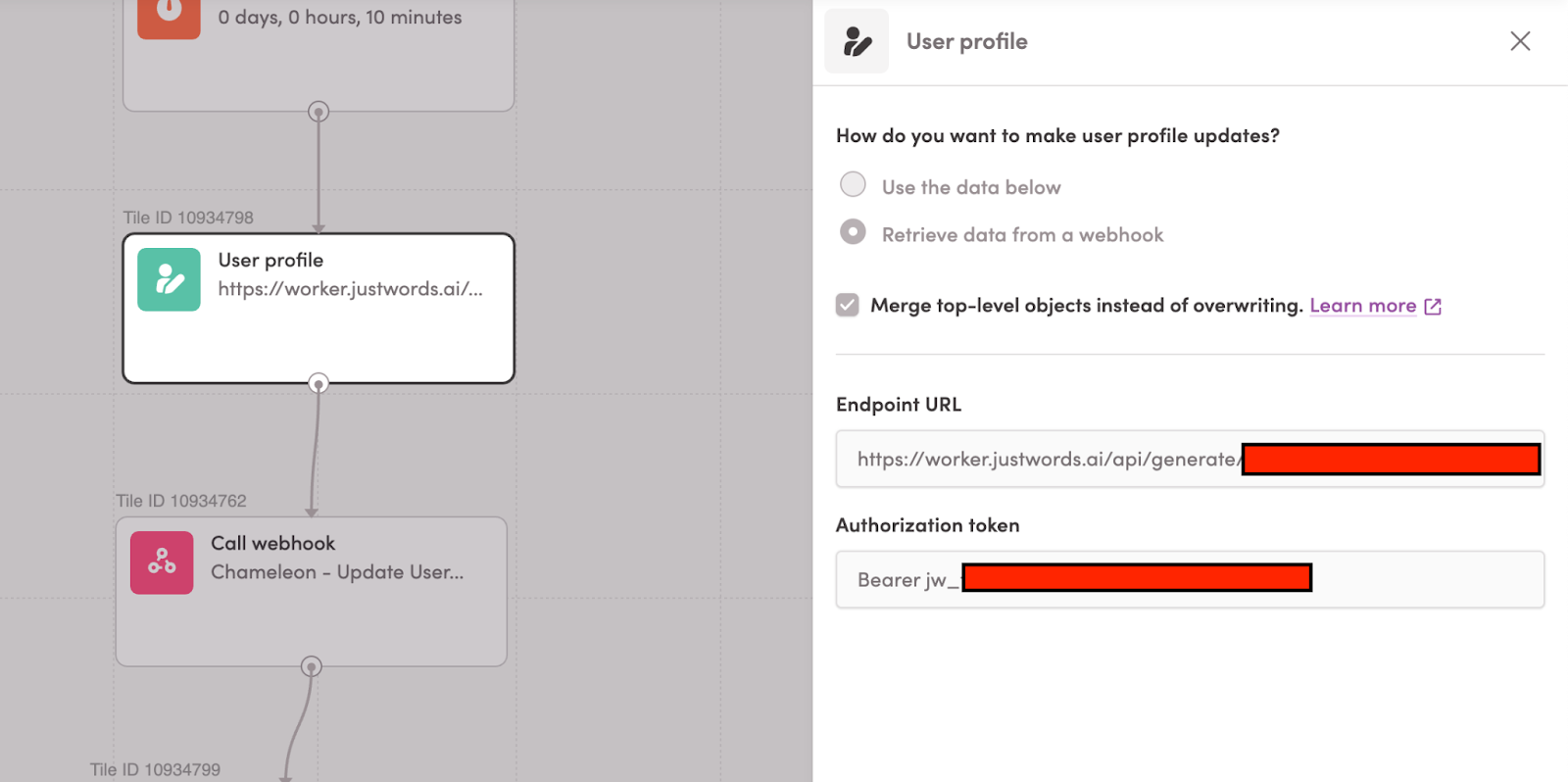
Setting copy in Iterable’s user properties
Section titled “Setting copy in Iterable’s user properties”Make an API call to JustAI’s Generate API and set the copy onto the Iterable user profile.
Setting copy in Chameleon.io’s user properties
Section titled “Setting copy in Chameleon.io’s user properties”We can call the endpoint https://api.chameleon.io/v3/observe/hooks/profiles with the follow sample body:
{ "uid": "{{userId}}", "copy_id_<tour_id>": "{{copy.id}}", "h1_<tour_id>": "{{copy.vars.h1}}", "body_<tour_id>": "{{copy.vars.body}}"}This will store the copy variables from JustAI to the Chameleon.io user profile.
Sending the copy_id back to JustAI
Section titled “Sending the copy_id back to JustAI”In Chameleon’s Integrations page, there should be a place to specify additional properties to add to webhook events, so we can include the email and copy_id_<tour_id> as an additional property.

Can I send additional properties to my connected integrations? | Chameleon Help Center