
Customer.io
Set up Customer.io → JustAI data ingestion so JustAI can measure performance (send/open/click/conversion) and power downstream workflows. This is one-time setup - all templates will share this configuration.
What Ingress Includes
Section titled “What Ingress Includes”JustAI ingests Customer.io reporting events via Reporting Webhooks. This provides the core metrics needed for analysis (opens, clicks, sends, conversions), as well as custom metrics that are important to you.
Before You Start
Section titled “Before You Start”- Confirm which Customer.io workspace (Production vs other) you’re connecting.
- Identify your JustAI org slug (usually your company name in all lower case - feel free to ask us).
- Make sure you have permissions to create API credentials and webhooks in Customer.io.
Template Setup (Webhook Action)
Section titled “Template Setup (Webhook Action)”- In Customer.io, open the campaign workflow and set up your control/treatment split:
- Control: existing message.
- Treatment: a Webhook Action followed by the JustAI message.
- Configure the Webhook Action request:
- Method:
POST - URL:
https://worker.justwords.ai/api/generate/<org_slug> - Headers:
X-Api-Key: <JUSTAI_API_KEY>Content-Type: application/json
- Body: use the payload recommended in JustAI (Template → Integration Settings → Customer.io).
- Method:
- Configure the Response tab:
- Attribute name:
jw_<template_id> - Value:
{{ response.copy | json }} - Source: choose customer attribute or journey trigger data depending on your attribute scope (see Attribute Scope below).
- Attribute name:
- In JustAI, open the template Integration Settings and set:
- Campaign ID
- Webhook Action ID (and Control Action ID if you use multiple controls)
- Attribute Scope (if enabled — see below)
- Save changes, then reference the stored data in your Customer.io message using the appropriate Liquid prefix:
- Customer attributes:
{{ customer.jw_<template_id>.vars.<var_name> }} - Journey attributes:
{{ journey.jw_<template_id>.vars.<var_name> }}
- Customer attributes:
Attribute Scope
Section titled “Attribute Scope”When the JustAI webhook returns a response, Customer.io stores it as an attribute that you reference in your message Liquid. There are two places this data can live:
| Scope | Liquid prefix | Stored on | Best for |
|---|---|---|---|
| Customer attributes | customer.jw_* | The customer profile | Simple setups, data needed across multiple journeys |
| Journey attributes | journey.jw_* | The current journey run | Most setups — avoids bloating the customer profile with per-template data |
Journey attributes are scoped to a single journey execution and are automatically cleaned up. Customer attributes persist on the profile indefinitely. For most use cases, journey attributes are recommended to keep customer profiles lean.
For more details, see the Customer.io docs on journey attributes and the journey attributes release notes.
Configuring attribute scope
Section titled “Configuring attribute scope”Per account (default): In JustAI, go to Org Integration Settings and set the Default Attribute Scope on your Customer.io workspace. All new templates will inherit this default.
Per template (override): In the template’s Integration Settings, the Attribute Scope selector lets you override the account default. This is useful when migrating — existing templates can stay on customer while new ones use journey.
Webhook response setup
Section titled “Webhook response setup”The webhook response configuration in Customer.io differs slightly depending on the scope:
- Customer attributes: In the Response tab, click “Set up an attribute”, choose the attribute name, and enter
jw_<template_id>. - Journey attributes: In the Response tab, click “Set up an attribute”, choose journey trigger data as the source, and enter
jw_<template_id>.
Personalization
Section titled “Personalization”The default webhook body works for basic setups. For personalization, pass additional user attributes to JustAI using the attrs field in the request body. JustAI can auto-sync these attributes to keep your personalization data up to date.
Basic Syntax
Section titled “Basic Syntax”Add an attrs object to your webhook body:
{ "attrs": { "<attribute_name>": "{{ customer.<field_name> }}" }}For example, to pass a user’s persona:
{ "attrs": { "persona": "{{ customer.persona }}" }}Multiple Attributes
Section titled “Multiple Attributes”Pass multiple attributes in a single request:
{ "attrs": { "persona": "{{ customer.persona }}", "plan": "{{ customer.plan_type }}", "city": "{{ customer.city }}" }}Handling Missing Values
Section titled “Handling Missing Values”Use Liquid conditionals to provide default values when attributes might be missing:
{% if customer.plan_type %}{{ customer.plan_type }}{% else %}free{% endif %}Referencing Objects
Section titled “Referencing Objects”Anything referenceable in Customer.io Liquid is available. You can reference nested objects, arrays, and relationships:
{{ customer.company.name }}- nested object property.{{ customer.tags | first }}- first item in an array.{{ customer.subscription.status }}- related object property.
Event Attributes
Section titled “Event Attributes”For event-triggered campaigns, event data is accessible via {{ event.<field> }}:
{ "attrs": { "product_category": "{{ event.product_category }}", "order_value": "{{ event.order_value }}" }}Full Example
Section titled “Full Example”A complete webhook body with required fields and custom attributes:
{ "template_id": "<template_id>", "user_id": "{{ customer.id }}", "tracking_id": "{{ message.journey_id }}", "attrs": { "persona": "{{ customer.persona }}", "plan": "{% if customer.plan_type %}{{ customer.plan_type }}{% else %}free{% endif %}", "company_name": "{{ customer.company.name }}" }}Fields vs Attrs
Section titled “Fields vs Attrs”JustAI supports two ways to pass user data: attrs and fields.
| Parameter | Purpose | Use When |
|---|---|---|
attrs | Attributes used for ranking and filtering variants | You want JustAI to select different content based on user segments (e.g., persona, plan type). |
fields | Personalization fields returned as hydrated strings | You need to insert user-specific values (e.g., first name) into the generated content without affecting variant selection. |
Use fields for simple personalization like names or account details:
{ "fields": { "first_name": "{{ customer.first_name }}", "account_number": "{{ customer.account_id }}" }}You can combine both in the same request:
{ "attrs": { "persona": "{{ customer.persona }}", "plan": "{{ customer.plan_type }}" }, "fields": { "first_name": "{{ customer.first_name }}" }}In this example, JustAI uses persona and plan to select the best variant, then hydrates first_name into the returned content.
For more details, see the Customer.io docs on Webhook Actions and Liquid personalization.
Reporting Webhook
Section titled “Reporting Webhook”1) Create a Customer.io API Key
Section titled “1) Create a Customer.io API Key”Create an App API key in your Customer.io workspace:
- Navigate to
Workspace settings→API and Webhook Credentials→App APi Keys. - Suggested values:
- Name:
JustAI - Workspace:
Production(or your chosen workspace)
- Name:

2) Save the Customer.io Key in JustAI
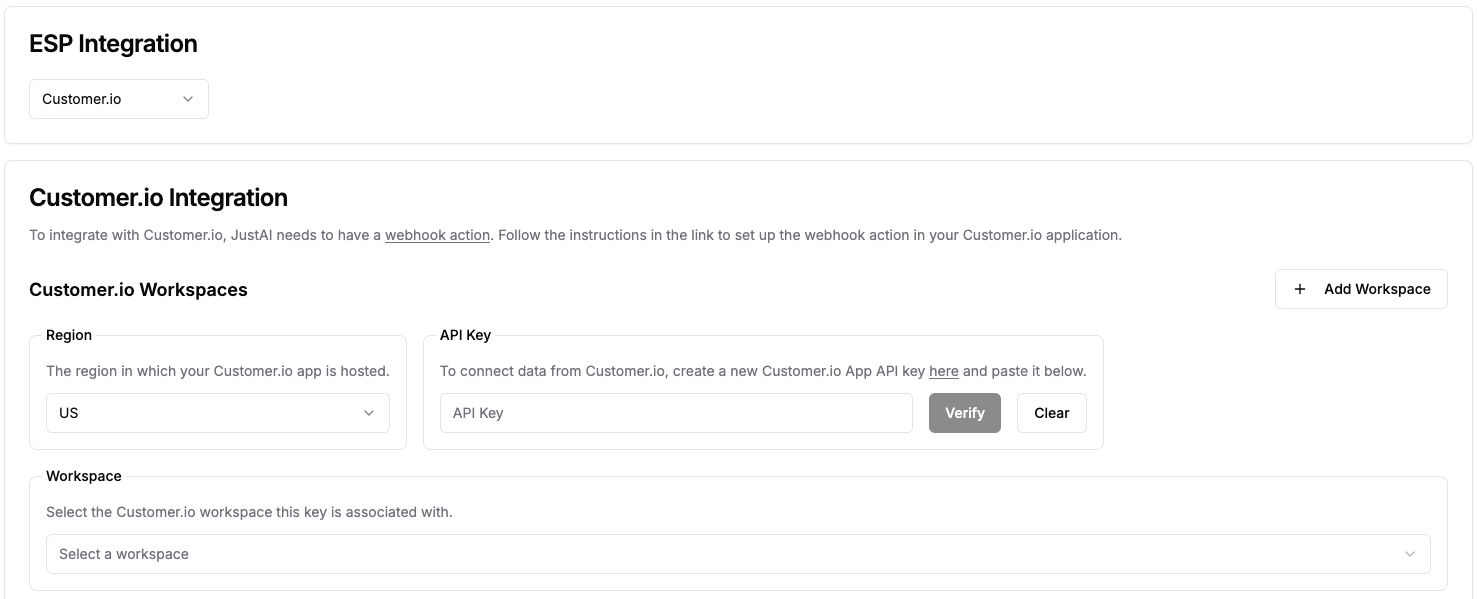
Section titled “2) Save the Customer.io Key in JustAI”In the JustAI console:
- Open Org Integration Settings.
- Select
Customer.ioas the ESP integration. - Choose the appropriate workspace (for example,
Production). - Paste the Customer.io API key and save changes.
3) Create a JustAI API Key
Section titled “3) Create a JustAI API Key”Store the key in a password manager. You’ll typically use this later for Customer.io “Webhook Action” calls.
4) Create a Reporting Webhook in Customer.io
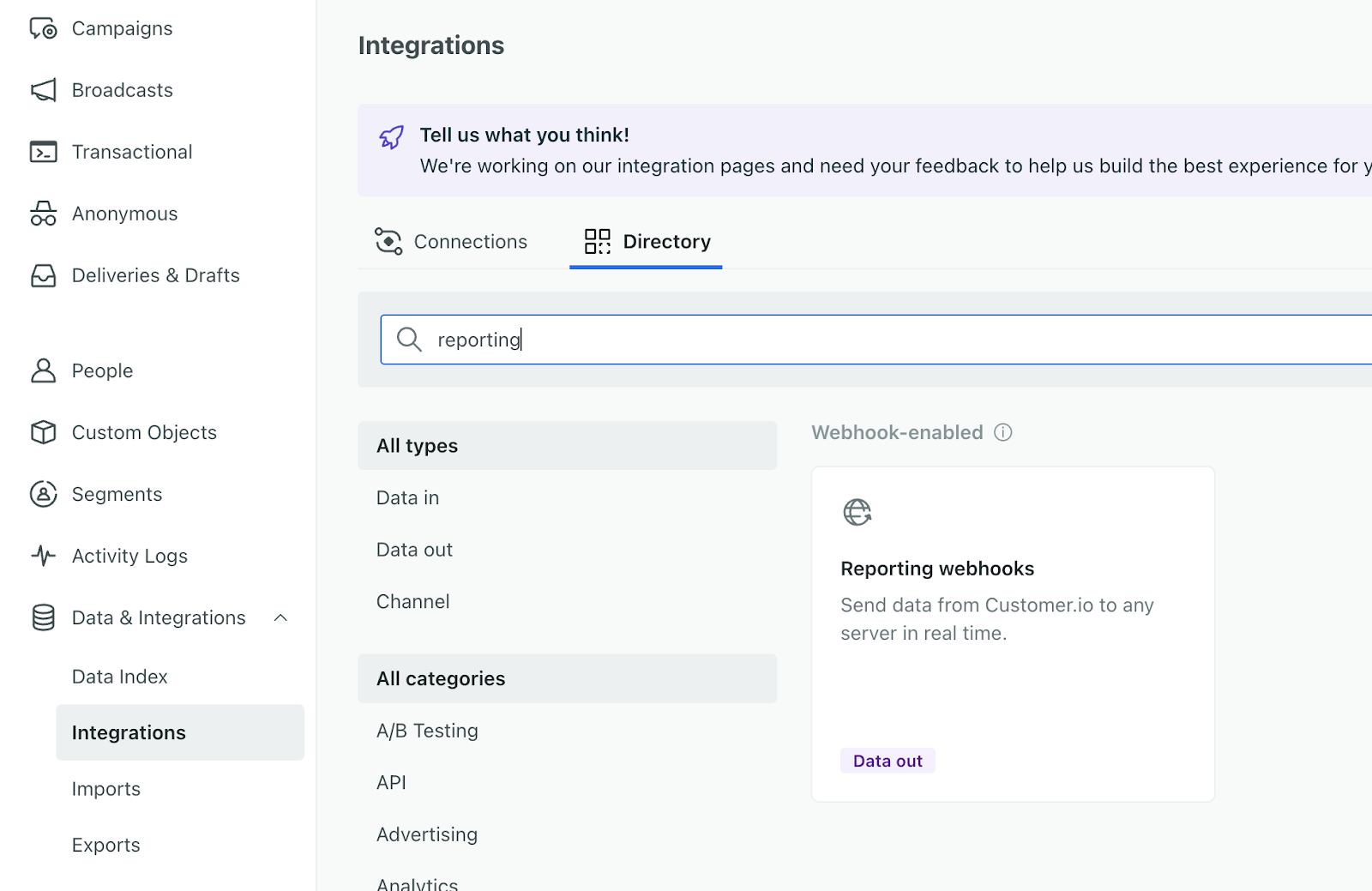
Section titled “4) Create a Reporting Webhook in Customer.io”In Customer.io, create a new Reporting Webhook:
- Go to
Data & Integrations→Integrations→Add Integration→Reporting Webhook. - Fill out the form:
- Webhook Name:
JustAI - Endpoint:
https://worker.justwords.ai/api/webhook/cio/<org_slug>- Replace
<org_slug>with your org’s name.
- Replace
- Events: select the events you want JustAI to ingest (start with send/open/click/conversion).
- Options:
Send only the first time the event occurs.
- Webhook Name:
- Press
SaveandEnable Webhook.
Custom Events
Section titled “Custom Events”Customer.io conversion metrics are tied to a campaign. If you need additional metrics, you can send custom events to JustAI for correlation with message sends within a time window.
Options:
- Daily batch ingestion via S3 (write data to a shared S3 bucket).
- Streaming ingestion via a JustAI events webhook API (similar shape to the Customer.io webhook endpoint above).
Please reach out to our team if you need to add custom events and we can help you integrate them.
Troubleshooting
Section titled “Troubleshooting”- Webhook never fires: confirm the Reporting Webhook is enabled in Customer.io and the endpoint is correct (including
<org_slug>). - No events arriving: confirm you selected the relevant events and that you are sending emails/triggering events in the correct workspace.
- Credentials issues: re-check which Customer.io workspace you created the API key in, and that the same workspace is selected in JustAI.
JustAI can share data about which content each user received for the JustAI-integrated Customer.io campaigns. The easiest strategy is to set up a daily data export with a shared S3 bucket on their AWS account to read/write to.
Example Data Payload
Section titled “Example Data Payload”Each record would reflect one JustAI API call with a user ID and a tracking ID that uniquely identifies an email/notification in Customer.io.
{ "event_timestamp": <unix_timestamp>, "user_id": <string>, // Customer.io "tracking_id": <string>, // Customer.io "copy_id": <uuid_string>, // JustAI "template_id": <string>, // JustAI // Record of strings, but depends on the template "vars": { "subject": <string>, "preheader": <string>, "body": <string> }, // Record of strings, but depends on the template "attrs": { "persona": <string>, "age": <string> }}In JustAI, each variant has a UUID (copy_id) and a template ID. A template ID corresponds 1:1 with an email / push / etc within a Customer.io campaign, but there can be many variants per template.
The journey ID & action ID uniquely identifies an instance of an email / push / etc and is generated by Customer.io. In our dashboards, we’ll be aggregating the engagement metrics produced by Customer.io but grouped by copy_id and date to see the performance of each variant over time.
Implementation
Section titled “Implementation”This is just a default, and there may be other preferred approaches (direct to Snowflake, etc).
- JustAI to provision an ARN role that will read/write to the shared AWS bucket.
- Client to create bucket or path in existing bucket and grant read/write access to the role (1)
- JustAI to export a backfill of data & to set up a daily export for new records.
- Client to transfer data from S3 into Snowflake (for example).
Implementation Details
Section titled “Implementation Details”This is just a default, and there may be other preferred approaches (Avro, etc.).
- The exported data to be in Parquet and written to a partitioned path like “…/YYYY/MM/DD/HH”
- Backfills to be run adhoc & would overwrite any existing data.
- The copy variables can be modified in the frontend, so the UUID => vars could be different. It’s generally the case that we will not modify them once they are being served unless there is a typo / etc.
- The copy metadata could be set up as a separate table rather than flattening them if that is easier for downstream analysis / better storage.
- Retention can be handled as a bucket policy.